It is 3:14 AM and the pager goes off. `/var` is at 97% and climbing. By the time you log in, the application has stopped accepting writes, the database has flipped into read-only mode, and your monitoring dashboard is a wall of red. You SSH in, run `df -h`, and there it is: a 200 GB volume, 100% used.
So you run `du -sh /var/*` and the numbers do not add up. The directories account for maybe 60 GB. The other 140 GB appears to have evaporated.
It has not. On Linux, disk space is always attached to something — a file, an inode, a deleted-but-still-open file handle, a container layer, an old kernel, a snapshot, or a log stream that nobody rotated. The forensic skill is knowing where to look, in what order, and which commands tell the truth.
This guide walks through the diagnostic sequence that actually finds the culprit, the traps that fool even experienced admins, and a cleanup routine that is safe to run at 3 AM.
Step 1: Read df Correctly — Space and Inodes
Every investigation starts with two commands, not one:
```bash
df -h
df -i
```
`df -h` shows bytes used per mounted filesystem. `df -i` shows inode usage. Inodes are the fixed-size records that store file metadata, and a filesystem can run out of inodes while still reporting plenty of free space. A directory holding two million tiny session files can hit 100% inodes while only 30% of its bytes are used — and the "No space left on device" error you get will confuse everyone who only checked `df -h`.
Three things to look for:
- Which mount is full. `df -h` reports per mount point. `/var`, `/home`, and `/` are often separate volumes, and filling one does not fill the others.
- Whether it is a network mount. An NFS or CIFS mount at 100% is somebody else's problem, but it still breaks your application. Check the device column before deleting anything.
- Whether inodes are the real limit. If `df -h` shows free space but writes still fail, `df -i` is your answer.
If the full filesystem is `/` but your data lives under `/var`, your space problem is inside `/var` even though `df` blames `/`. Mount layout matters more than the first line of command output.
Step 2: The Trap — Deleted Files That Are Still Open
This is the single most common reason `df` and `du` disagree, and it is why a "full" disk stays full even after you delete the obvious culprit.
When a process has a file open and you remove that file, the directory entry disappears but the inode and its data blocks are not released until the process closes the handle. `du` walks the directory tree and cannot see the file, so it reports less usage. `df` asks the filesystem and still counts the blocks. The space is real, occupied, and completely invisible to `du`.
The fix is one command:
```bash
lsof +L1
```
`+L1` lists files with a link count below one — in other words, deleted files that are still held open. The output shows the owning process, the file descriptor, and the size. A single runaway log file held open by a web server can hold tens of gigabytes hostage for weeks.
Once you have identified it, you have two safe options:
- Restart or reload the process so it releases the handle. Prefer a graceful reload, and only in a maintenance window if the process is critical.
- Truncate the file in place through the file-descriptor path. This writes to the same inode, frees the data blocks, and keeps the descriptor valid:
```bash
truncate -s 0 /proc/12345/fd/7
```
Replace `12345` with the PID from `lsof` and `7` with the file descriptor number. Verify with `df -h` immediately afterwards — the freed space should appear within seconds.
Step 3: Find the Real Space Hogs with du and ncdu
With the ghost-file case ruled out, walk the tree:
```bash
du -xh --max-depth=1 / | sort -rh | head -20
```
The `-x` flag matters: it stops `du` from crossing into other filesystems, so a mounted backup volume or a tmpfs does not pollute your results. Sorting by human-readable size and taking the top lines gives you the biggest directories at each level. Drill down by repeating the command on the winner.
On busy servers, `du` walking a multi-million-file tree takes longer than the outage you are trying to fix. Run it with `timeout` so a scan cannot hang your session:
```bash
timeout 120 du -xh --max-depth=1 /var | sort -rh | head
```
For interactive hunting, install `ncdu`. It indexes the tree once and then lets you navigate, sort, and delete with the keyboard — far faster than repeated `du` passes:
```bash
ncdu -x /var
```
On a 500 GB volume, `ncdu` typically finishes its index in under a minute, and keeping that index in memory between drill-downs saves enormous time during an incident. Both tools are read-only until you press a delete key, which makes them safe to run on a live server.
Step 4: The Usual Suspects
Once you know the directory, the next question is what inside it. These categories account for the vast majority of real-world surprises:
| Suspect | Typical location | What to do |
|---|---|---|
| systemd journal | /var/log/journal | Cap with journalctl vacuum |
| Application logs | /var/log, app dirs | Rotate and compress |
| Container layers | /var/lib/docker | Prune dangling images |
| Package cache | /var/cache | Clean the package manager |
| Old kernels | /boot | Keep two, purge the rest |
| Core dumps | coredump store | Disable or cap it |
The systemd journal is the most common single offender on modern distributions. It is not managed by `logrotate`; it has its own retention. Check it with `journalctl --disk-usage` and cap it with `journalctl --vacuum-size=500M` or `journalctl --vacuum-time=14d`. A persistent journal under `/var/log/journal` can silently reach tens of gigabytes on a chatty server.
Container storage is the second. Deleted images and stopped containers leave layers behind. `docker system df` shows the breakdown, and pruning reclaims it — but read the confirmation prompt carefully, because including the volumes flag also deletes unused volumes.
Old kernels are a classic `/boot` filler, and `/boot` is usually only 500 MB. Keep the running kernel plus one fallback and purge the rest. The moment you notice is usually during a failed kernel upgrade, when the partition has no room to unpack the new image.
Core dumps are the quiet one. If a service crashes in a loop, its coredumps can balloon. Check the store's size and either disable coredumps for that unit or cap the storage.
Step 5: A Safe Cleanup Playbook
Order matters. Deleting the wrong thing at 3 AM turns an incident into an outage. Work in this sequence:
- Confirm the failing mount with `df -h` and `df -i`.
- Rule out ghost files with `lsof +L1`.
- Find the top directories with `du -xh --max-depth=1`.
- Free the safest space first — vacuum the journal, clear the package cache, remove rotated logs that are already compressed and shipped off-box.
- Reclaim container space only after confirming nothing running needs those images.
- Verify with `df -h` immediately, then again ten minutes later to catch a file that is still growing.
A compact sequence that reclaims journal space, cleans package caches, and confirms the result:
```bash
journalctl --vacuum-size=300M
apt-get clean
df -h /
```
Never delete a file you cannot name. Running a removal command against a wildcard at 3 AM is how people erase the audit log they needed to explain the incident. If a file is open and growing, fix the writer — log rotation, a log level, or the underlying bug — not just the symptom.
Prevention: Stop the Next 3 AM Page
Recovering from a full disk is a skill. Preventing the next page is a discipline, and it is mostly configuration:
- Monitor both space and inodes, and alert at 80% rather than 95%. At 95% you have minutes; at 80% you have a working day.
- Rotate every application log. One unmanaged log file defeats a whole server's logrotate configuration. Test your rules with a dry run.
- Cap the journal in its config file using a maximum-size setting, so vacuuming is a safety net rather than a nightly ritual.
- Give container storage its own volume. When images balloon, you lose the container host — not the database on the same disk.
- Never keep backups on the same host, and never in the same filesystem. Local backups turn a disk failure into a total loss and a space problem into two.
- Report the top consumers weekly. A short scheduled report of the five largest directories on your busiest mount turns an emergency into a trend line.
Conclusion
A full disk is not a mystery — it is a query. `df` tells you where, `lsof +L1` tells you whether the space is a ghost, `du` and `ncdu` tell you what, and a disciplined cleanup order tells you what is safe to free. Master those four moves and the 3 AM page becomes a ten-minute fix instead of a four-hour firefight.
Free the space first, then fix the reason it filled. That is the difference between an admin who survives the pager and one who finally silences it.
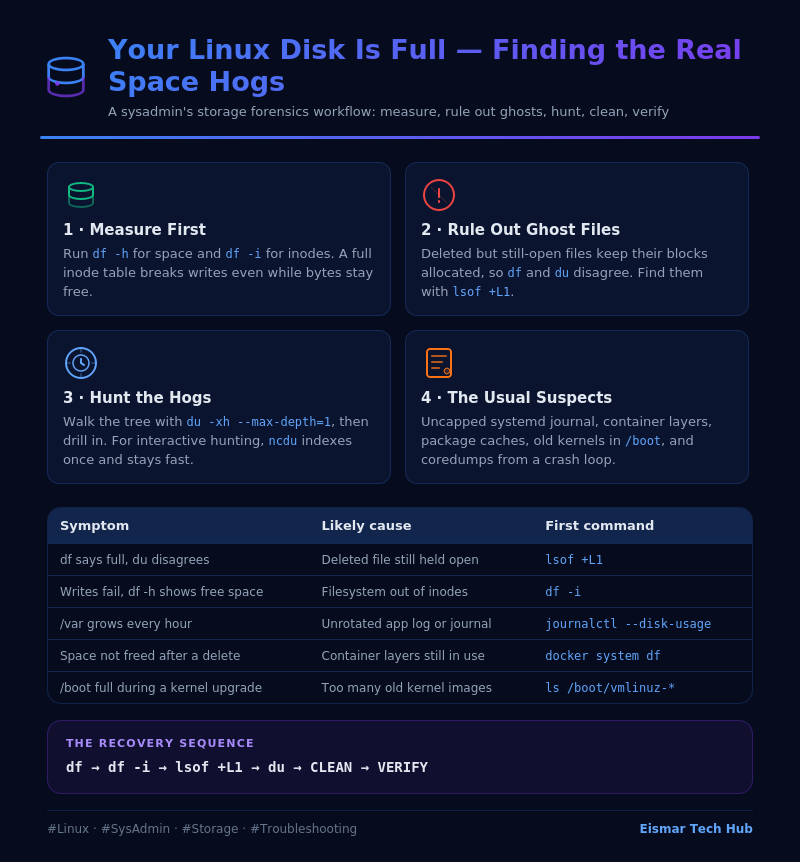
Infographic: Your Linux Disk Is Full — Finding the Real Space Hogs

💬 0 Comments