It is 2:17 AM and the pager goes off. One of your servers is not answering SSH. You check the console — the machine powered on, the fans are spinning, and then it just sits there. No login prompt. No network. A kernel panic, a GRUB prompt, or a wall of text that scrolls past too fast to read.
This is the moment where panic decides whether you fix the server in twenty minutes or rebuild it over two days. A server that will not boot is rarely a dead server. It is almost always a configuration failure — a bad `/etc/fstab` line, a corrupted bootloader, a full root filesystem, or a kernel update that broke a driver. All of those are recoverable, and most of them are recoverable without reinstalling anything.
This playbook walks through the four failure classes you will actually hit, the exact commands to recover from each, and the mindset that separates a calm sysadmin from a 4 AM rebuild. Keep it bookmarked — you will need it at the worst possible time.
Rule Zero: Read the Logs Before You Touch Anything
The single biggest mistake during a boot failure is improvisation. You start typing commands you half-remember, and you turn a ten-minute fix into a corrupted filesystem. Resist that urge. Linux writes down exactly what went wrong, and in most cases the answer is already on disk.
If the machine boots far enough to reach a shell — even an emergency shell — you have everything you need. The kernel ring buffer stores one boot at a time, but `journalctl` keeps a persistent history across reboots by default on most modern distributions:
```bash
journalctl -b # this boot
journalctl -b -1 # the PREVIOUS (failed) boot
journalctl -p err -b -1 # only errors from the failed boot
dmesg | tail -50 # kernel ring buffer, if journald is unavailable
```
The `-b -1` flag is the money command. When a server crashes on boot and you manage to get back in via rescue mode or a known-good kernel, `journalctl -b -1` replays the failed boot line by line. Nine times out of ten the last few lines before the freeze name the culprit: a timeout waiting for a disk, a failed mount, a missing kernel module, or an out-of-memory kill.
If the machine drops to a GRUB prompt and never reaches the kernel at all, then the problem is upstream of the OS — and you can skip straight to the next section.
Failure 1: The GRUB Rescue Prompt
You see this and your heart sinks:
```
grub rescue>
```
This means GRUB found its own code but lost the path to its configuration and modules. The classic cause is a partition table change, a reordered disk, or a `/boot` that moved. GRUB is not broken — it just does not know where home is.
Recovery is a three-command dance. First, find the partition that holds `/boot`:
```
ls
ls (hd0,gpt2)/
ls (hd0,gpt2)/boot/grub
```
GRUB's `ls` tells you whether a partition is readable and what is on it. When you find the one containing `grub/` and your kernel images, tell GRUB where to look:
```
set root=(hd0,gpt2)
set prefix=(hd0,gpt2)/boot/grub
insmod normal
normal
```
The `insmod normal` step loads the normal module so GRUB can parse its real config and show you a menu. From there the system usually boots, and you can repair GRUB permanently once you are logged in:
```bash
sudo grub-install /dev/sda
sudo update-grub # Debian/Ubuntu
sudo grub2-mkconfig -o /boot/grub2/grub.cfg # RHEL family
```
If you have a rescue USB or ISO, booting it and running those two commands inside a chroot is the more reliable path. Booting from the disk to fix the disk is possible, but it is a workaround, not a repair.
Failure 2: Emergency Mode Because of a Bad `/etc/fstab`
This is the most common "it will not boot" call and the easiest to fix. You edited `/etc/fstab`, rebooted, and now the machine drops into emergency mode with a message like:
```
Dependency failed for /mnt/data.
```
Systemd mounts everything in `/etc/fstab` before it considers the boot complete. If one entry points at a device that no longer exists — a USB disk you unplugged, a UUID that changed after a re-format, a typo in the mount path — the whole boot is treated as failed, even though the root filesystem is perfectly fine.
To fix it you need a writable root. Emergency mode usually mounts `/` read-only, so remount it:
```bash
mount -o remount,rw /
```
Then open `/etc/fstab` and look at the entry that failed. The single most useful diagnostic is to verify that every UUID actually exists on the system:
```bash
lsblk -f # lists all block devices with UUIDs and mountpoints
blkid # raw UUID / TYPE listing
```
Compare the UUIDs in `/etc/fstab` against this output. A mismatch is your answer. Fix the UUID, or comment the line out with a leading `#` if the mount is optional, then reboot. For network filesystems and removable media, always add the `nofail` option so a missing device can never block the boot again:
```
UUID=xxxx-xxxx /mnt/data ext4 defaults,nofail 0 2
```
That one word, `nofail`, prevents an entire class of 3 AM outages. Add it to every non-root mount on every server you manage. It is the cheapest insurance in systems administration.
Failure 3: The Root Filesystem Is Full
A full root filesystem produces some of the strangest symptoms in Linux. Services fail to start, logins hang, sudo refuses to run, and sometimes the machine does not reach a login prompt at all because systemd cannot write its state. It looks like catastrophic corruption. It is almost always just a log file.
Once you are in rescue or emergency mode, confirm the pressure:
```bash
df -h /
du -xh / --max-depth=1 2>/dev/null | sort -rh | head -15
```
That second command walks the top level of the filesystem and sorts directories by size, which is usually enough to find the offender in seconds. Common suspects are `/var/log`, `/var/cache`, old kernels in `/boot`, and runaway application logs in `/var/lib`. Docker users should also check `/var/lib/docker` —
```bash
docker system df
docker system prune -a --volumes
```
Once you are back at a prompt in normal mode, truncate rather than delete log files so the file handles stay valid:
```bash
truncate -s 0 /var/log/huge-file.log
```
Then attack the root cause. If `/var/log` is filling a small partition, enable `logrotate` policies or move logs to their own volume. If `/boot` is full, remove old kernels with your package manager's autoremove command. A filesystem that fills up twice is a design problem, not an accident.
Failure 4: Kernel Panic After an Update
You patched the kernel, rebooted, and now the machine panics before it ever reaches userspace. This is the failure that scares people most — the OS never got the chance to start. But it is also one of the most recoverable, because the old kernel is still on disk.
At the GRUB menu, choose "Advanced options for Ubuntu" (or the equivalent) and boot the previous kernel version. GRUB keeps the last few kernels installed for exactly this reason. Once you are in on the old kernel, you can either fix the new one or roll it back cleanly:
```bash
uname -r # confirm which kernel you booted
dpkg -l | grep linux-image # Debian/Ubuntu — list installed kernels
rpm -qa | grep kernel # RHEL family
```
If the new kernel breaks a driver your server depends on — a storage controller, a network adapter, or a proprietary module — pin the working kernel and exclude the broken package from automatic upgrades until a fix lands. Then schedule a proper maintenance window to investigate rather than gambling again.
The heavier tool, and the one worth knowing, is the rescue-chroot repair. Boot any live Linux media, identify your root device, and mount it directly:
```bash
mount /dev/mapper/vg0-root /mnt
mount /dev/sda2 /mnt/boot
for d in dev proc sys run; do mount --bind /$d /mnt/$d; done
chroot /mnt /bin/bash
```
Now you are running the broken system as if you were logged into it, with full access to its package manager, its initramfs tools, and its bootloader. You can reinstall a kernel, rebuild the initramfs, repair GRUB, or fix a fstab typo from the outside. This single technique has saved more unbootable servers than any other tool in the kit.
The Recovery Mindset: Prevention Beats Heroics
Every recovery you perform is a warning shot. The servers that go down twice are the ones where nobody asked why the first failure happened. Three habits eliminate most boot failures before they happen:
- Never reboot a server you cannot reach physically without checking `fstab` first. Validate UUIDs with `lsblk -f` and test new mounts with `mount -a` before the reboot, not after. `mount -a` catches bad entries while the machine is still healthy.
- Keep snapshots or at least a known-good kernel. LVM, Btrfs, and ZFS snapshots let you roll back a bad change in minutes. If you are on plain ext4, the previous kernel sitting in `/boot` is your snapshot of last resort. Never let autoremove delete it.
- Monitor disk space and SMART health, not just CPU. A predictive alert at 85 percent full is worth more than any recovery skill. Disk space, inode exhaustion, and failing drives cause more unbootable servers than software bugs do.
Write the playbook down and rehearse it. The sysadmins who stay calm at 2 AM are not smarter than the ones who panic — they have just read the logs, seen the error, and recognised the pattern before.
Conclusion
A server that will not boot feels like the floor has dropped out. It rarely has. Modern Linux is resilient and astonishingly verbose: the failed boot is logged, the old kernel still exists, the data is intact, and the misconfiguration is sitting in a text file waiting to be corrected.
Read the logs first. Boot the previous kernel. Remount root read-write. Fix the one bad line. Nine failures out of ten follow that exact path, and every one of them is faster than a reinstall — if you keep your head and follow the playbook. Drain the pager battery, not the coffee machine.
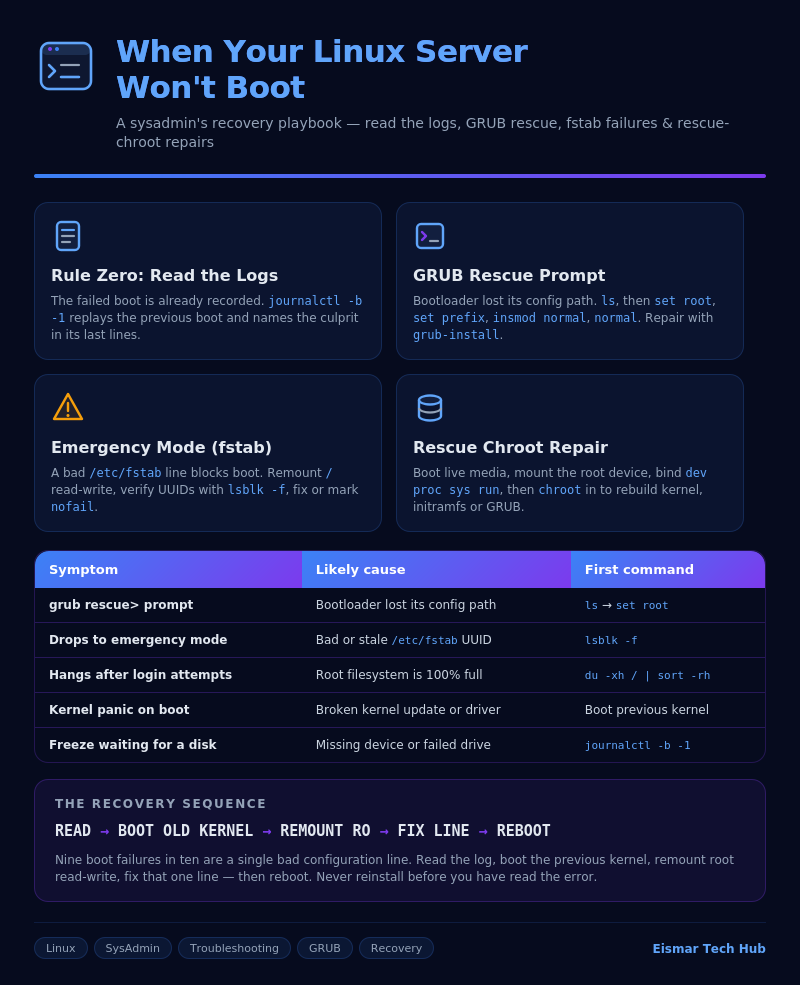
Infographic: When Your Linux Server Won't Boot — A Recovery Playbook

💬 0 Comments