If there's one thing that separates a Linux rookie from a battle-hardened sysadmin, it's how they handle users, groups, and file permissions. It sounds mundane — almost boring — but get it wrong and you're looking at security breaches, accidental data deletion, and those dreaded 3 AM "why can't the app write to its own log directory?" calls. Get it right, and your servers run securely, your teams collaborate without stepping on each other's toes, and auditors actually sign off without a laundry list of findings.
In this guide, we're going beyond `chmod 777` (please, never again). We'll cover the full permission stack: classic Unix permissions, special bits, Access Control Lists, user management best practices, sudo configuration, and the hardening steps every sysadmin should know.
The Permission Trinity: Owner, Group, and Others
Every file and directory in Linux has three permission tiers. You probably know this, but let's set the foundation.
```bash
-rw-r--r-- 1 root root 1024 Jul 22 10:00 config.conf
```
The first character tells us the type (`-` = file, `d` = directory, `l` = symlink). The next nine characters are three groups of three:
- Owner (rw-): User `root` can read and write, but not execute
- Group (r--): Members of group `root` can only read
- Others (r--): Everyone else can only read
Numeric (octal) mode is how we express this compactly: read=4, write=2, execute=1. So `644` means owner=6 (rw), group=4 (r), others=4 (r). If you memorise nothing else, remember that `755` is standard for directories and executables (rwx for owner, rx for everyone else), and `644` is standard for regular files.
Why 777 Is Your Enemy
Setting permissions to `777` makes a file writable by anyone on the system — including a compromised web server process or a malicious script. There is almost never a legitimate reason for `777` on a production server. If your application needs write access, create a dedicated group, add the service user to it, and use `770` or `775` instead.
Special Permission Bits: SUID, SGID, and the Sticky Bit
Beyond the basic rwx triple, Linux has three special permission flags that every sysadmin must understand.
SUID (Set User ID) — `chmod u+s`
When set on an executable, the process runs with the file owner's privileges, not the user who launched it. The classic example is `/usr/bin/passwd` — it needs root privileges to modify `/etc/shadow`, but regular users must be able to change their own passwords.
```bash
-rwsr-xr-x 1 root root 68248 May 29 13:32 /usr/bin/passwd
```
The `s` in the owner's execute position marks SUID. Use it sparingly — every SUID binary is a potential privilege escalation vector. Audit yours with `find / -perm -4000 2>/dev/null`.
SGID (Set Group ID) — `chmod g+s`
On an executable, SGID runs with the group of the file. More usefully, on a directory, new files created inside it inherit the directory's group, not the creator's primary group. This is gold for shared project directories:
```bash
mkdir /srv/project
chown :devteam /srv/project
chmod g+s /srv/project
```
Now every file created inside `/srv/project` automatically belongs to the `devteam` group, regardless of who created it. No more "oh, I can't edit your file because my umask was wrong" arguments.
Sticky Bit — `chmod +t`
Best known from `/tmp` (drwxrwxrwt). On a world-writable directory, the sticky bit prevents users from deleting files they don't own. Without it, anyone could delete anyone else's temp files.
```bash
drwxrwxrwt 10 root root 4096 Jul 22 08:00 /tmp
```
ACLs: When Basic Permissions Aren't Enough
Standard Unix permissions only let you define rules for one user, one group, and everyone else. That falls apart fast when you need "User A can write, User B can read, Group C can execute, and everyone else gets nothing."
Enter Access Control Lists (ACLs).
```bash
Grant user 'john' read-write access to a file owned by 'deploy'
setfacl -m u:john:rw /var/www/app/config.yaml
Grant group 'auditors' read access
setfacl -m g:auditors:r /var/www/app/config.yamlView current ACLs
getfacl /var/www/app/config.yaml ```ACLs show up as a `+` at the end of the permission string (`-rw-rw-r--+`). They're stored as extended attributes, so the underlying filesystem must support them (ext4, XFS, and Btrfs all do, out of the box).
Default ACLs on directories ensure new files inherit permissions automatically:
```bash
setfacl -m d:u:john:rwx /srv/shared
```
This sets a default ACL — new files and subdirectories will grant John the specified permissions automatically.
Pro tip: Manage ACLs with `getfacl -R /path > acls.backup` and restore with `setfacl --restore=acls.backup`. This saves you during disaster recovery.
User & Group Management Best Practices
Create Service Accounts, Don't Reuse Personal Logins
Every application, database, and service should have its own system user. Running Nginx as `www-data` and PostgreSQL as `postgres` isn't just convention — it's isolation. If the web server is compromised, the attacker doesn't automatically get database access.
```bash
Create a system user (no login shell, no home dir)
useradd --system --no-create-home --shell /usr/sbin/nologin app_service
Or the more explicit way
adduser --system --no-create-home --disabled-login app_service ```Groups Enable Collaboration, Not Just Access
Think of groups as permission profiles. Instead of granting access to individual users, create a group and add users to it:
```bash
groupadd webadmins
usermod -aG webadmins alice
usermod -aG webadmins bob
chown -R :webadmins /var/www/app
chmod -R g+rwX /var/www/app
```
The `-aG` flag is important — without `-a`, `usermod -G` removes the user from all other groups. Always use `-aG` (append) unless you intentionally want to replace group membership.
Lock User Accounts Properly
When someone leaves the team, don't delete their account immediately — you might need their files for an audit. Lock it:
```bash
usermod --lock alice # Lock password
usermod --expiredate 1 alice # Expire account immediately
```
The combination prevents login via password AND SSH keys. Review locked accounts quarterly and archive their home directories after 90 days.
Mastering sudo: Granular Privilege Delegation
Handing out root passwords is a security anti-pattern. Instead, use `sudo` with precise rules defined in `/etc/sudoers.d/`.
```bash
Allow the 'ops' team to run any command (use with caution)
%ops ALL=(ALL) ALL
Allow 'deploy' user to restart services only
deploy ALL=(root) /usr/bin/systemctl restart , /usr/bin/systemctl statusAllow 'backup' user to run backup scripts without password prompt
backup ALL=(root) NOPASSWD: /usr/local/bin/backup.sh ```Rule of thumb: Be as specific as possible. `NOPASSWD` is convenient for automation scripts but dangerous for interactive users. Always validate your sudoers syntax with `visudo -c` before deploying — a syntax error can lock everyone out.
Common Pitfalls and How to Avoid Them
Umask: The Silent Permission Setter
Every process has a umask that determines the default permissions of newly created files and directories. Most systems default to `022` (files: 644, directories: 755). But if a service runs with `umask 000`, every file it creates is world-writable.
```bash
Check current umask
umask
Set in /etc/profile or service unit file
umask 027 # Files: 640, directories: 750 ```For systemd services, set `UMask=0027` in the `[Service]` section.
The `find` Permission Audit
Periodically audit your filesystem for permission problems:
```bash
Find world-writable files (potential security risk)
find / -perm -o+w -type f 2>/dev/null | grep -v proc
Find files without an owner
find / -nouser -o -nogroup 2>/dev/null ```Orphaned files (no user or group) are often the result of deleted accounts — reassign them before they become a mystery.
Directory vs File Permissions
Remember: execute permission on a directory is what allows you to enter it and access its contents. A directory with `r--r--r--` but no execute (`--x`) can be listed but not entered. The practical formula:
- Directories: Always `755` unless the directory is private (then `700`)
- Files: `644` for configs, `640` for secrets, `755` for executables, `600` for SSH keys
Conclusion
Linux permissions aren't just a security checkbox — they're the foundation of multi-user system administration. Mastering the full stack (standard bits, SUID/SGID, sticky bit, ACLs, user management, and sudo delegation) turns you from someone who "sets 777 and moves on" into a sysadmin who understands access control at every layer.
A well-configured permission scheme means fewer fire drills, cleaner audit trails, and happier teams. Start with the basics — proper user separation, sensible group structures, and minimal sudo rules — then layer on ACLs and special bits as your environment demands it. Your future self (and your security auditor) will thank you.
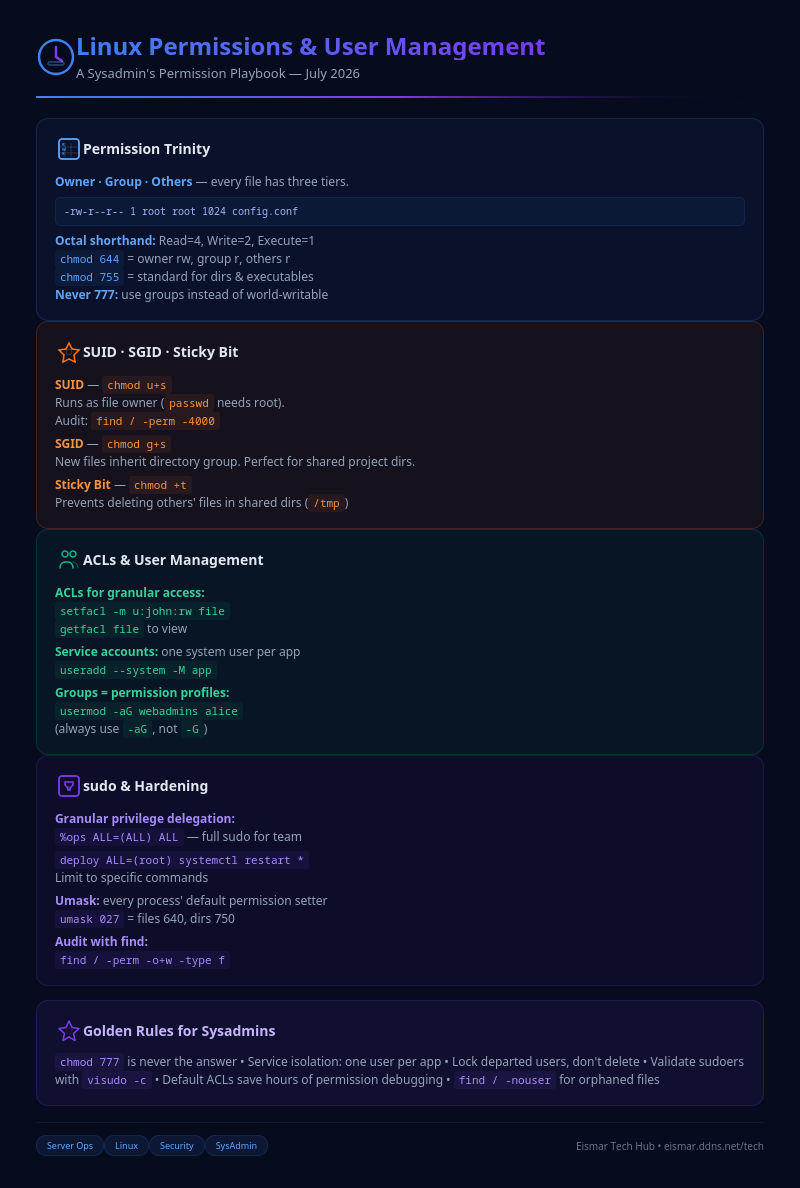
Infographic: Linux Permissions Cheat Sheet

💬 0 Comments