It is 2:47 AM. Your phone buzzes with a monitoring alert: one of the three disks in your production server's array has dropped offline. If that server is running a plain single-disk setup, you are now wide awake and driving to the office. But if it is running a properly configured software RAID array, you glance at the alert, roll over, and sleep until morning — because the data is still being served from the surviving mirrors, and you have a well-rehearsed recovery plan.
That is the quiet promise of RAID: not that disks will never fail, but that a single failure becomes an inconvenience instead of a catastrophe. And on Linux, the tool that makes this promise real is `mdadm` — the multi-device administration utility that manages the kernel's built-in software RAID subsystem. In this guide, we will build an array from scratch, set up monitoring that catches trouble early, and walk through recovering a failed disk step by step.
Why Software RAID Still Matters in 2026
Modern filesystems like ZFS and Btrfs offer their own redundancy, and hardware RAID controllers are still common in enterprise storage. So why bother with `mdadm`? Three reasons.
First, it is already there. Software RAID is part of the Linux kernel. There is no driver to install, no vendor firmware to update, no RAID card to fail. The array lives on the disks themselves, so you can move all the disks to a completely different machine and the kernel will happily reassemble the array.
Second, there is no vendor lock-in. A hardware RAID controller that dies can take your data with it if you cannot source an identical replacement. Software RAID is portable across any Linux system with a modern kernel.
Third, it is transparent and scriptable. Every operation is a command you can automate, log, and audit. There is no opaque management GUI hiding what actually happened.
Where hardware RAID still wins is battery-backed write cache and offloading parity calculations from the CPU. For the vast majority of small and mid-sized deployments — file servers, database hosts, homelab virtualization nodes — software RAID is more than sufficient, and today's multi-core CPUs barely notice the parity math.
The RAID Levels That Actually Matter
You will encounter many RAID levels, but in practice five of them cover almost every real-world scenario. Here is how they compare.
| Level | Redundancy | Min Disks | Usable Capacity | Best For |
|---|---|---|---|---|
| RAID 0 | None | 2 | 100% | Scratch space, temp data, performance |
| RAID 1 | Mirror | 2 | 50% | Boot volumes, small databases |
| RAID 5 | Single parity | 3 | (N-1) disks | General purpose file storage |
| RAID 6 | Dual parity | 4 | (N-2) disks | Large arrays where rebuild risk is high |
| RAID 10 | Mirror + stripe | 4 | 50% | Databases, high write performance |
RAID 0 stripes data across disks with no redundancy at all. It is fast and uses the full capacity, but if any single disk dies, you lose everything. Never use it for data you care about.
RAID 1 mirrors data across two (or more) disks. It is the simplest redundancy model: every write goes to both disks, and a read can come from either. You pay 50% of your capacity for the peace of mind.
RAID 5 stripes data plus a single distributed parity block across at least three disks. You lose one disk's worth of capacity to parity but survive one disk failure. It is a popular middle ground — though be aware that during a rebuild, a second failure is fatal, and large slow disks take a long time to rebuild.
RAID 6 adds a second parity block, so it survives two simultaneous disk failures. This matters on large arrays of big disks, where rebuilds can stretch into many hours.
RAID 10 combines mirroring and striping. It is the fastest option for write-heavy workloads like databases, at the cost of 50% usable capacity. If performance and reliability both matter and budget allows, RAID 10 is the classic choice.
For most general-purpose servers, RAID 1 for the OS and RAID 5 or 6 for data is a sensible baseline. For database servers, lean toward RAID 10.
Building Your First mdadm Array
Let us build a three-disk RAID 5 array from scratch. I will assume three fresh disks: `/dev/sdb`, `/dev/sdc`, and `/dev/sdd`.
Step 1 — Identify your disks. Before touching anything, confirm exactly which devices you are working with. Getting this wrong is how people erase the wrong disk.
```bash
lsblk -o NAME,SIZE,TYPE,MODEL
sudo fdisk -l
```
Step 2 — Partition the disks. You can use whole disks, but partitioning with the correct type marks them clearly as RAID members. Create one partition of type `fd` (Linux raid autodetect) on each disk using `parted` or `sfdisk`.
```bash
sudo parted /dev/sdb --script mklabel gpt mkpart primary 1MiB 100%
sudo parted /dev/sdb --script set 1 raid on
```
Repeat for `/dev/sdc` and `/dev/sdd`. The goal is a clean partition layout where every member disk matches.
Step 3 — Create the array. This is the moment of commitment. Use `--level=5`, list every device, and confirm the disk count.
```bash
sudo mdadm --create /dev/md0 --level=5 --raid-devices=3 /dev/sdb1 /dev/sdc1 /dev/sdd1
```
The kernel immediately begins an initial resync, building parity from scratch. On large disks this can take hours. You can use the array while it syncs, but performance will be reduced.
Step 4 — Watch the initial sync. The single most useful file in all of software RAID is `/proc/mdstat`. It shows array status, which disks are active, and resync progress.
```bash
watch -n 5 cat /proc/mdstat
```
When the resync finishes, the array reports `[UUU]` — three healthy members.
Step 5 — Create a filesystem and mount it. The array device (`/dev/md0`) behaves exactly like a normal block device.
```bash
sudo mkfs.ext4 /dev/md0
sudo mkdir -p /mnt/data
sudo mount /dev/md0 /mnt/data
```
Step 6 — Save the array configuration. This is the step people forget, and it costs them dearly after a reboot. You must persist the array definition so the kernel reassembles it automatically.
```bash
sudo mdadm --detail --scan | sudo tee -a /etc/mdadm/mdadm.conf
sudo update-initramfs -u
```
Step 7 — Add it to `/etc/fstab`. Use the filesystem UUID, not the device name, so the mount survives disk reordering.
```bash
sudo blkid /dev/md0
```
Then add a line to `/etc/fstab` referencing `UUID=
That is it — a resilient array, assembled automatically on every boot.
Monitoring: Catching a Degraded Array Before It Bites
An unmonitored RAID array is a false sense of security. The whole point is to know immediately when a disk fails, not weeks later when a second one goes.
The daily glance. `/proc/mdstat` and `mdadm --detail` are your first stops.
```bash
cat /proc/mdstat
sudo mdadm --detail /dev/md0
```
Look at the state summary: `[UUU]` is healthy, `[UU_]` means one member is missing. In `--detail` output, watch the `State` line and the `Failed Devices` count.
Proactive disk health. RAID tells you when a disk has already failed. SMART tells you when it is about to. Install `smartmontools` and enable background self-tests.
```bash
sudo smartctl -a /dev/sdb
sudo smartctl -t short /dev/sdb
```
Watch especially for reallocated sector counts, pending sectors, and a rising UDMA CRC error count (often a failing cable).
Automatic email alerts. `mdadm` ships with a monitor mode that watches arrays and emails you on any state change. Configure the destination address in `/etc/mdadm/mdadm.conf` and enable the systemd `mdmonitor` service.
```bash
grep MAILADDR /etc/mdadm/mdadm.conf
sudo systemctl enable --now mdmonitor
```
Integration with modern monitoring. If you run Prometheus, the `nodeexporter` exposes RAID metrics from `/proc/mdstat` through its md collector, so you can alert whenever a member disk reports a failed state. Nagios users can use the `checkraid` plugin for the same purpose.
Recovering a Failed Disk
This is the procedure you rehearse so you can execute it calmly at 2 AM. Let us say `/dev/sdb1` has failed and the array now reports `[U_U]`.
Step 1 — Confirm the failure.
```bash
cat /proc/mdstat
sudo mdadm --detail /dev/md0
```
Step 2 — Mark the disk as failed and remove it. This tells the kernel to stop relying on it.
```bash
sudo mdadm /dev/md0 --fail /dev/sdb1
sudo mdadm /dev/md0 --remove /dev/sdb1
```
Step 3 — Replace the physical disk. Power down if the disk is not hot-swappable, or swap it live if your hardware supports it.
Step 4 — Prepare the new disk identically. Partition it with the same layout and RAID type as the original.
```bash
sudo parted /dev/sdb --script mklabel gpt mkpart primary 1MiB 100%
sudo parted /dev/sdb --script set 1 raid on
```
Step 5 — Add the disk back to the array. The kernel begins rebuilding immediately, copying data from the surviving members.
```bash
sudo mdadm /dev/md0 --add /dev/sdb1
watch -n 5 cat /proc/mdstat
```
Step 6 — Update the saved configuration so the new disk's identity is recorded, then confirm the array returns to `[UUU]`.
```bash
sudo mdadm --detail --scan | sudo tee /etc/mdadm/mdadm.conf
```
Two important pitfalls. First, the replacement disk must be at least as large as the smallest existing member — a smaller disk is rejected. Second, if your array has no write-intent bitmap, the entire array must be fully resynced even though only part of it changed. Adding an internal bitmap makes future rebuilds dramatically faster.
```bash
sudo mdadm --grow /dev/md0 --bitmap=internal
```
Pro Tips and Best Practices
RAID is not a backup. This cannot be overstated. RAID protects against disk failure — it does nothing against accidental deletion, ransomware, a corrupted filesystem, or a power event that fries the whole machine. Keep a real backup using the 3-2-1 rule: three copies, two media types, one offsite. Tools like `rsync`, Borg, and restic (covered in an earlier post on this blog) belong in every serious deployment.
Use write-intent bitmaps to make rebuilds fast, as shown above.
Schedule a monthly data scrub. A scrub reads every block and verifies parity, catching silent corruption before it becomes data loss.
```bash
echo check | sudo tee /sys/block/md0/md/sync_action
```
Monitor SMART, not just RAID state. A disk that is still "in the array" but accumulating reallocated sectors is a ticking clock. Replace it proactively.
Keep identical disks where possible. Mixing sizes wastes capacity, and mixing models can create subtle performance mismatches. Keep a cold spare on the shelf.
Test your recovery. An untested backup and an unrehearsed rebuild procedure are both worthless. Practice failing and re-adding a disk in a lab environment so the real thing feels routine.
The Bottom Line
Software RAID is one of those technologies that rewards a small upfront investment with enormous peace of mind. With `mdadm`, a modest three-disk array turns a catastrophic disk failure into a routine maintenance task: swap the disk, add it back, and let the kernel do the rest. Build it deliberately, monitor it relentlessly, and rehearse the recovery before you need it.
A smart operator does not hope their disks never fail — they plan for the day one does.
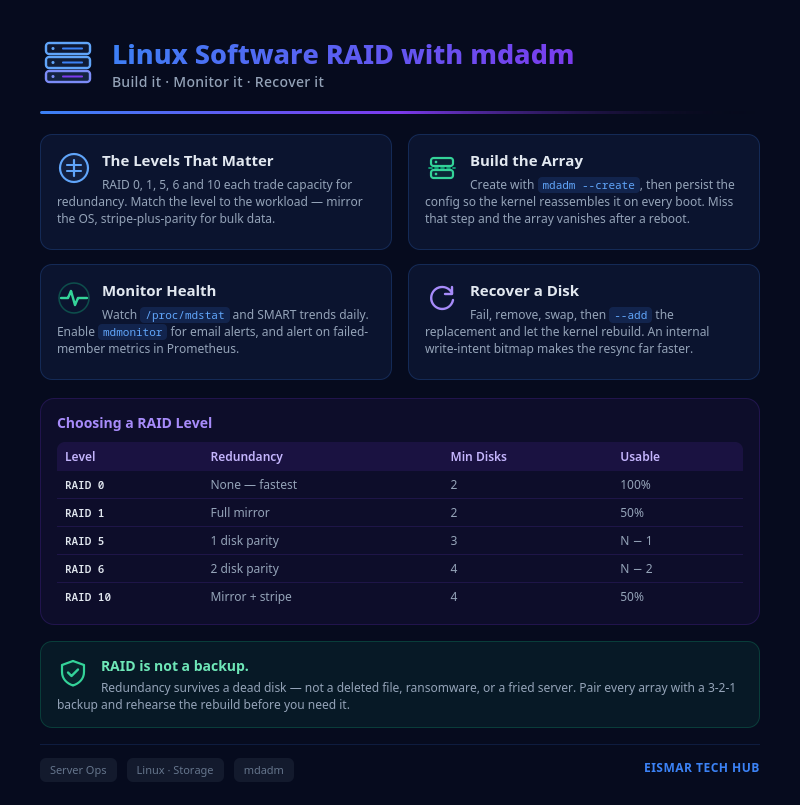
Infographic: Linux Software RAID with mdadm

💬 0 Comments