You SSH into your server one morning, type `free -h`, and your heart sinks. Memory usage is at 91%. The hosting dashboard is flashing red. You reboot the box "just to be safe" — and within a day it's back at 90%. Sound familiar?
Here's the thing: on Linux, high memory usage is not the same thing as a memory problem. The kernel is designed to use as much RAM as possible — and most of that "used" memory is actually doing useful work as cache. The real skill every sysadmin needs isn't knowing how to reboot; it's knowing how to read the numbers, tell a healthy cache from a genuine leak, and tame the OOM killer before it tames you.
This guide walks through exactly that: what Linux is doing with your RAM, how to read `free` and `vmstat` like a pro, when swap is your friend, and how to keep the Out-Of-Memory killer from executing your database at 3 AM.
First, Unlearn What "Used Memory" Means
On Windows or macOS, high memory usage is usually bad news. On Linux, it's often the opposite. The kernel aggressively uses spare RAM for two things:
- Page cache — recently read files, libraries, and executables kept in memory so re-reading them is instant.
- Buffers — temporary staging for writes heading to disks and block devices.
That's why `free -h` shows a big `buff/cache` number. Crucially, cache is not wasted memory. The moment an application asks for RAM, the kernel drops or evicts cache pages in microseconds and hands the memory over. "Free" memory on a busy Linux box is, frankly, wasted memory — it sits idle doing nothing.
The number you should actually watch is `available`, not `free`. `available` is the kernel's estimate of how much memory can be handed to new processes without forcing swap. It accounts for reclaimable cache. A server showing 200 MB `free` but 6 GB `available` is perfectly healthy; a server with 200 MB `available` is genuinely in trouble.
Reading the Numbers Like a Pro
Start every investigation with three commands. They cost nothing and tell you almost everything.
1. `free -h` — the snapshot
```bash
free -h
total used free shared buff/cache available
Mem: 15Gi 6.1Gi 1.2Gi 180Mi 8.1Gi 8.7Gi
Swap: 2.0Gi 0B 2.0Gi
```
Look at `available`, not `free`. If `available` is a healthy chunk of `total`, walk away — nothing is wrong. If `available` is tiny and `Swap` usage is climbing, keep digging.
2. `vmstat 1 5` — the trend
```bash
vmstat 1 5
procs -----------memory---------- ---swap-- -----io---- -system-- ------cpu-----
r b swpd free buff cache si so bi bo in cs us sy id wa st
2 0 0 1.2Gi 180M 7.9Gi 0 0 12 30 400 800 5 2 92 0 0
```
The columns that matter for memory are `si` and `so` — swap-in and swap-out per second. If both sit at zero, the server is not swapping, no matter what the total usage looks like. If `si`/`so` are consistently non-zero, the machine is actively paging to disk — and that is the performance killer, because disk I/O is roughly a thousand times slower than RAM. Also glance at `r` (runnable processes): a sustained value above your CPU core count means the CPU is overloaded, which can masquerade as a memory problem.
3. `/proc/meminfo` and PSI — the detail
When you need precision, read the source of truth:
```bash
grep -E 'MemTotal|MemAvailable|SwapTotal|SwapFree|SwapCached' /proc/meminfo
cat /proc/pressure/memory
```
The PSI (Pressure Stall Information) file is a modern gem: `avg10`, `avg60`, `avg300` tell you what fraction of time tasks were stalled waiting for memory. Consistently high `avg10` means real memory pressure — not just a scary-looking percentage.
Swap: The Safety Valve You Should Keep
Swap is a decades-old debate. Some guides tell you to disable it on servers with "enough" RAM. That advice is usually wrong.
Swap gives the kernel somewhere to park cold anonymous pages (private process data that hasn't been touched in a long time) so it can use that RAM for hot cache instead. It also buys you time: when memory spikes, the system degrades gradually instead of the OOM killer firing instantly. A server with swap is a server that coughs; a server without swap is a server that dies.
Check what you actually have:
```bash
swapon --show
NAME TYPE SIZE USED PRIO
/dev/sda2 partition 2G 0B -2
```
Then tune how eagerly the kernel swaps with `vm.swappiness` (0–100, default 60):
```bash
sysctl vm.swappiness=10 # immediate
echo 'vm.swappiness=10' >> /etc/sysctl.d/99-swap.conf # permanent
```
The default 60 is tuned for desktops. For servers and databases, 10 is the sweet spot: the kernel prefers reclaiming cache and only swaps when it genuinely must. On a tiny VPS (1–2 GB RAM), consider zram — compressed swap in RAM itself — which can effectively double your usable memory without touching disk.
The OOM Killer: Last Line of Defence, or Executioner?
When the kernel truly cannot satisfy memory requests — no free pages, cache exhausted, swap full — it invokes the Out-Of-Memory killer. And here's the uncomfortable truth: it does not kill the worst process, it kills the process that lets it free the most memory fastest. In practice, that is almost always your biggest process — frequently MySQL, PostgreSQL, or Redis. Your database gets executed for the sins of a leaky PHP worker or a runaway Java heap.
You can see the verdict in the kernel log:
```bash
journalctl -k | grep -i 'out of memory'
dmesg | grep -i 'killed process'
```
Protecting critical services. Every process gets an `oomscore`; you adjust it with `oomscore_adj` (range −1000 to +1000, default 0). Negative values make a process less likely to be chosen:
```bash
systemctl set-property mysql.service OOMScoreAdjust=-500
```
`-1000` makes a process completely immune — use it sparingly, because an immune process can starve everything else into being killed instead. For systemd services, also set hard caps so a runaway never reaches the OOM killer at all:
```ini
MemoryHigh=3G # soft — throttle under pressure
MemoryMax=4G # hard — OOM-kill this cgroup only
```
Overcommit. `vm.overcommitmemory` (default 0 = heuristic) controls how much virtual memory the kernel will promise. Setting it to 2 (`never overcommit`) with a sensible `vm.overcommitratio` makes the kernel refuse allocations beyond a limit — a stricter, more predictable posture for database hosts, at the cost of some applications that legitimately reserve large virtual address spaces (hello, Java).
A 5-Minute Memory Troubleshooting Workflow
When a server misbehaves, run this exact sequence before touching anything:
- `free -h` — is `available` genuinely low, or is it just cache?
- `vmstat 1 5` — are `si`/`so` non-zero? Are `r` and CPU sane?
- `cat /proc/pressure/memory` — is `avg10` elevated? That is real pressure.
- `top` sorted by memory (`Shift+M`) — find the actual consumer. Suspect a leak? Watch its RES column grow over minutes.
- `journalctl -k | grep -i oom` — has the OOM killer already fired? Who did it kill?
Only then act: fix or restart the leaking process, add swap headroom, tune `swappiness`, cap the service with `MemoryMax`, and protect your database with `OOMScoreAdjust`. Change one variable at a time and re-measure.
Settings Worth Remembering
| Setting | Typical value | Why it matters |
|---|---|---|
| `vm.swappiness` | 10 (servers) | Prefer cache reclaim over swapping; default 60 suits desktops |
| `vm.vfscachepressure` | 50–100 | Lower = keep more inode/dentry cache (often helps file-heavy servers) |
| `vm.overcommit_memory` | 0 or 2 | 0 = heuristic; 2 = strict accounting for predictable DB hosts |
| `OOMScoreAdjust` | −500 (databases) | Makes critical services less likely OOM victims |
| `MemoryMax` (systemd) | app-specific | Hard cap so one service can't sink the host |
Conclusion
Linux memory management stops being scary the moment you stop staring at `used` and start reading `available`, `si`/`so`, and the pressure files. High usage with healthy available memory is the system working as designed. Real problems announce themselves through sustained swap activity, rising PSI pressure, and OOM kills — and each of those has a calm, deliberate fix.
The key takeaway? Don't reboot in a panic — diagnose. Read the numbers, keep swap as a safety valve, protect your databases from the OOM killer, and cap your services before they capsize the host. A smart sysadmin makes informed decisions, and on Linux, the memory tells you exactly what it needs — if you know where to look.
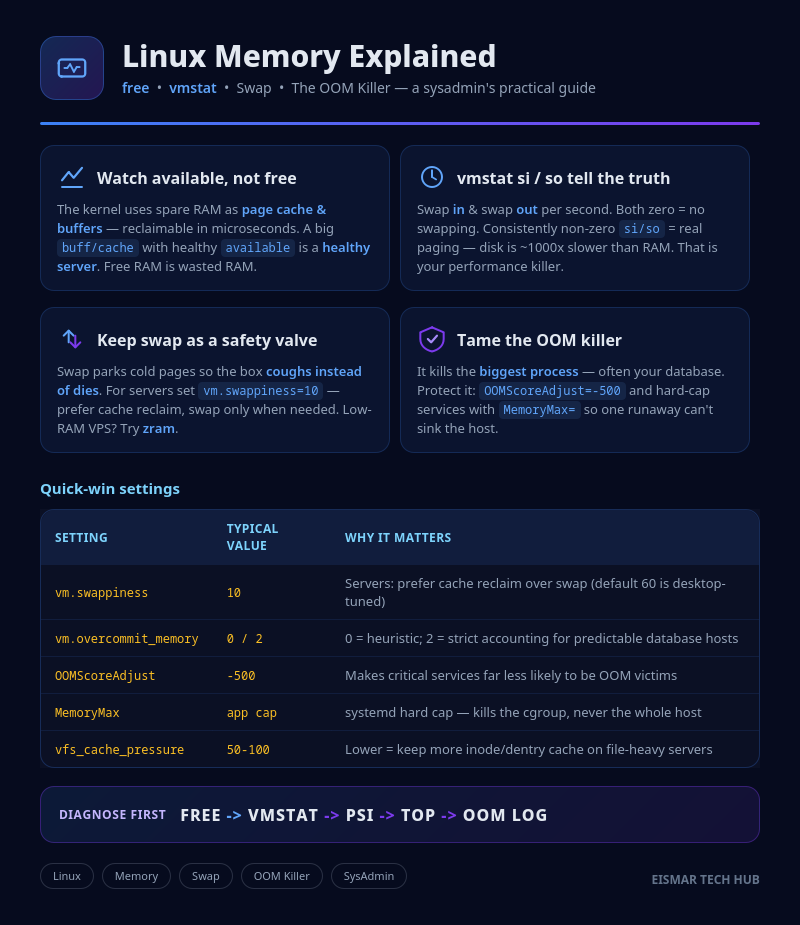
Infographic: Linux Memory — free, vmstat, Swap & the OOM Killer

💬 0 Comments