Most sysadmins use SSH every single day — but a surprising number only ever use it to log into a box and run commands. That's like owning a Swiss Army knife and only ever using the toothpick. SSH has a second superpower that almost nobody uses to its full potential: port forwarding. It can turn an SSH connection into a fully encrypted, on-demand network tunnel that lets you reach services you were never meant to reach directly.
Let's break down the three flavours of SSH tunneling, when to use each, and the small config tricks that make them stick.
The Big Idea: SSH Is a Universal Pipe
An SSH tunnel is a way to wrap any TCP traffic inside your encrypted SSH session. Think of it as a stretchy, secure hose: one end sits on your machine, the other end sits on the remote server or somewhere the remote server can reach, and everything that flows through the hose is encrypted by SSH.
Why does this matter in practice? Because in a well-built environment, most services are not exposed to the internet — and they shouldn't be. Your MySQL database, your internal Grafana dashboard, your Redis cache, your VNC console, that legacy admin panel: none of these should have a public port. But sometimes you, the trusted operator, need to reach them from your laptop. That's exactly the problem SSH tunneling solves.
The key mental model to keep in mind: SSH always gives you one authenticated, encrypted connection. Tunneling is just deciding where to punch holes in the firewall at each end of that connection.
Local Forwarding (`-L`): Reach What the Server Can Reach
Local forwarding is the most common form and the one you'll use 90% of the time. You want to reach a service that lives on the remote network — but from your local machine. The syntax:
A local forward (-L):
```bash
ssh -L 8080:localhost:3000 user@server.example.com
```
Read that as: "Open port 8080 on my local machine, and forward everything that hits it to port 3000 on the remote host, across this SSH session."
The trick that confuses beginners is the middle address. It is resolved from the remote server's point of view, not yours. So in the example above, `localhost:3000` means "port 3000 on the remote server itself." But you can point it somewhere deeper:
```bash
ssh -L 5432:db.internal:5432 user@bastion.example.com
```
Now you have a local Postgres port that actually lands on an internal database the bastion can reach. You never opened a firewall rule, you never exposed the database, and the whole thing is encrypted. Classic use cases:
- Grafana / Prometheus: `ssh -L 3000:localhost:3000 user@monitoring-host` then browse `http://localhost:3000`
- MySQL: `ssh -L 3306:localhost:3306 user@db-host` then point your client at localhost
- A web app on a private host: forward to `http://localhost:8080`
One gotcha: by default, the local port binds only to `127.0.0.1`. If you want other machines on your LAN to use your tunnel (rarely a good idea), add `-g`. Don't do that casually — you'd be re-exposing the service you were trying to hide.
Remote Forwarding (`-R`): Let the Outside Come In
Remote forwarding is the mirror image, and it's the one that unlocks the "I'm behind NAT" problem. Here you want a service on your local machine (or your local network) to be reachable from the remote server. So the hole is punched at the remote end.
A remote forward (-R):
```bash
ssh -R 9000:localhost:3000 user@server.example.com
```
Read it as: "Open port 9000 on the remote server, and forward everything that hits it back down the tunnel to port 3000 on my local machine."
The killer use case is reaching your home lab or a dev machine behind a carrier-grade NAT. You can't open a port on your home router, but you can make an outbound SSH connection to a server with a public IP. Once that connection is up, the public server can reach back into your network:
From the box behind NAT, forward so the public server's port 2222 lands on the local machine's SSH port 22:
```bash
ssh -R 2222:localhost:22 user@public.example.com
```
Now anyone on the public server can `ssh -p 2222 localhost` and land on your behind-NAT machine. It's a poor man's reverse proxy, a support channel into a client network, and a way to demo a local build to a colleague — all with nothing more than an SSH command. The related `-g` consideration applies here too: whether the forwarded remote port is bound to loopback or all interfaces depends on the server's `GatewayPorts` setting.
Dynamic Forwarding (`-D`): Your Personal SOCKS Proxy
Local and remote forwards are point-to-point: one local port, one destination. Dynamic forwarding is different — it turns your SSH connection into a SOCKS5 proxy. You give it one local port, and any application that speaks SOCKS can route arbitrary traffic through the tunnel, with destinations resolved and dialled from the remote side.
A dynamic forward (-D):
```bash
ssh -D 1080 user@server.example.com
```
Then point your browser or tool at `socks5://localhost:1080`. Suddenly every request leaves from the remote host's network position. This is how you:
- Browse an internal wiki as if you were on the corporate network
- Route `curl` or API testing tools through a specific exit location
- Reach dozens of internal hosts without setting up a single `-L` rule
For a quick CLI example, curl supports SOCKS directly:
```bash
curl --socks5-hostname localhost:1080 https://internal-wiki.example.com
```
The `--socks5-hostname` variant is important: it hands the hostname resolution to the remote side, so internal-only DNS names actually resolve. This is the single biggest source of "why doesn't my dynamic tunnel work" confusion.
Jump Hosts: Hopping Through Bastions
In hardened environments, you often can't reach the target server directly — you have to go through a bastion or jump host. Many people chain SSH commands by hand, which is clunky and prevents proper key management. The modern answer is `ProxyJump`:
```bash
ssh -J jumpuser@bastion.example.com user@internal-server
```
This opens a tunnel to the bastion, then a second SSH session through it to the internal server. Keys, agents, and host keys all behave properly. You can even chain multiple hops with commas:
```bash
ssh -J user@bastion1,user@bastion2 user@final-target
```
Under the hood, `ProxyJump` is doing exactly the same port-forwarding trickery you just learned — it's a local forward to the target's SSH port via the bastion. Which means once you understand `-L`, `ProxyJump` stops being magic and becomes obvious.
Making It Permanent: The `~/.ssh/config` File
Nobody wants to type a six-part SSH command every morning. The `~/.ssh/config` file lets you name your tunnels and get them with a single word. Here is a realistic block:
An SSH config entry with an automatic tunnel:
```
Host grafana-tunnel
HostName monitoring.example.com
User admin
LocalForward 3000 localhost:3000
ServerAliveInterval 60
ServerAliveCountMax 3
```
Now `ssh grafana-tunnel` opens the tunnel and drops you into a shell. Add `-N` to suppress the shell and `-f` to push it to the background if you only want the tunnel:
```bash
ssh -f -N grafana-tunnel
```
Those two flags — `-N` (no command/shell) and `-f` (background after auth) — are the bread and butter of "just give me the tunnel" workflows. The `ServerAliveInterval` settings are the quiet heroes: they keep the tunnel from silently dying when a NAT device or load balancer decides an idle connection is disposable. If your tunnels mysteriously stop working after a few minutes, this is almost always why.
Common Pitfalls & Security Notes
SSH tunneling is powerful, which means it deserves respect. A few hard-won lessons:
- Port conflicts. If port 8080 is already in use locally, the tunnel fails silently-ish with a "bind: Address already in use" message. Pick another local port or find what's squatting on it with `ss -lntp`.
- The middle address is remote-relative. Repeat this until it's reflex. `-L 5432:localhost:5432` is not your local 5432; it's the remote's.
- Tunnels are not a security bypass. You still need valid credentials for whatever service you reach. A tunnel moves traffic, it doesn't grant access.
- Watch who can use your tunnel. Prefer loopback binding. Only add `-g` or enable `GatewayPorts` when you truly need LAN-wide access, and understand that you are then exposing that service to everyone who can reach your machine.
- Tunnels are ephemeral. They live only as long as the SSH session. For anything permanent, use a real service (WireGuard, a reverse proxy, a VPN) rather than a pile of `-L` flags.
The Payoff
Port forwarding is one of those skills that quietly changes how you work. Once it clicks, you stop asking the network team to "just open that port," stop exposing dashboards to the internet just to check a graph, and stop being blocked by a bastion. You reach exactly what you need, exactly when you need it, and the whole path is encrypted end to end.
Learn the three modes — `-L`, `-R`, and `-D` — memorise `-N` and `-f`, then move your production tunnels into `~/.ssh/config`. That's the entire toolkit, and it will serve you for the rest of your career.
A smart operator doesn't widen the attack surface. A smart operator builds a secure tunnel instead.
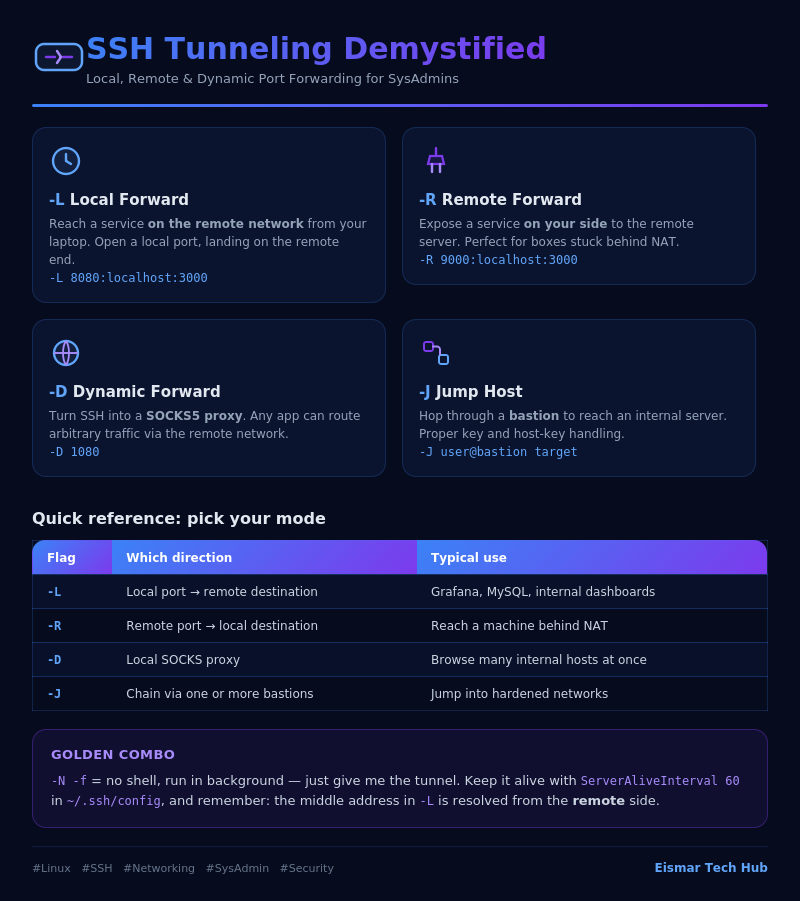
Infographic: SSH Tunneling Demystified

💬 0 Comments