If you updated your Mac to macOS 27 "Golden Gate" this month and noticed your free space quietly shrinking, you are not imagining it. Your photos are not the problem. Your documents are not the problem. The culprit is Apple Intelligence — and this week a wave of reporting from MacRumors, Ars Technica, Tom's Guide, Lifehacker, and CNET confirmed what plenty of Mac users had already worked out the hard way: the AI features Apple spent two years selling are now a storage line item you cannot switch off.
That is a genuinely new kind of problem. For twenty years, "freeing up disk space" on a Mac meant hunting down movies you forgot, caches you never cleared, or that one folder of screenshots from 2019. Now the single biggest space consumer on some machines is software you did not ask for, cannot see in Finder, and — until recently — could not delete at all.
Let's break down what is actually happening, how to check your own machine, and how to get the space back.
The Storage Tax Nobody Warned You About
Here's the short version. The moment you install macOS 27, Apple downloads a multi-gigabyte AI model to your SSD the next time the machine sees an internet connection. You do not get a prompt. You do not get a checkbox. It just happens.
In previous versions of macOS you could opt out of Apple Intelligence entirely. That escape hatch is gone. Apple removed the toggle to disable Apple Intelligence in both macOS 27 and iOS 27, which means the models powering Siri AI and the rest of the Apple Intelligence stack are now, functionally, part of the operating system.
Apple's own support documentation says the latest Apple Intelligence features need up to 14GB of on-device storage on Macs with an M3 chip or newer and at least 12GB of unified memory, and up to 8GB on other Apple Intelligence-capable Macs. Reasonable numbers, on paper, for a 512GB machine.
Reality has been less polite. MacRumors measured 20.67GB handed to Apple Intelligence on an M4 Pro Mac mini. Ars Technica recorded 22.42GB on an M3 MacBook Air after a clean install. One Reddit user posted a screenshot from the macOS 27 Release Candidate showing 30.16GB consumed. Another reported 24.35GB on a MacBook Pro with an M3 Pro chip.
Those are not edge cases on tiny drives. A 30GB surprise on a 256GB MacBook Air is more than a tenth of the entire SSD — roughly the space of a full Windows 11 virtual machine, gone, for a feature many people never deliberately turn on.
Why Your Mac Wants 30GB for AI
The reason the numbers are so large comes down to how Apple chose to architect its AI.
Apple's privacy pitch is that Apple Intelligence does as much work as possible on your device rather than on a server. That is a defensible design — your messages and your photos never have to leave the Mac. But "on-device" is not free. It means the models themselves have to physically live on your SSD.
The current stack includes AFM 3 Core, a 3-billion-parameter on-device model, plus a heavier multimodal model called AFM 3 Core Advanced for the machines that can run it. When a task is too big for the local silicon, Apple hands it off to Private Cloud Compute servers instead. The local models stay resident regardless, because that is what makes the fast, private path possible.
The gap between Apple's stated numbers and what users actually see is still unexplained. MacRumors noted that even Macs which do not meet the minimum spec for the advanced model — like an M1 MacBook Air — were showing around 14GB, despite falling in the class Apple rates at "up to 8GB." Apple has not clarified whether its published figure is directly comparable to what the Storage pane reports.
Worse, there is no tidy place to see it. macOS does not show "Apple Intelligence: 20GB" as a neat line item. The models are managed as system assets, so they get rolled into the System Data category — which is exactly the category everyone already ignores because it is opaque. The bloom happens where you are least likely to look.
Apple's published estimates, for reference:
| Device class | Apple's stated storage |
|---|---|
| iPhone 18 Pro / Pro Max / Duo, iPhone 17 Pro / Pro Max / Air | Up to 14GB |
| iPad with M4+, Mac with M3+, Vision Pro (M5), ≥12GB memory | Up to 14GB |
| Other compatible iPhones, iPads, Macs, Vision Pro, Apple Watch | Up to 8GB (1.5GB on Watch) |
| iPhone 15 / 15 Plus, iPhone 14 and earlier, iPhone SE | Not supported |
Treat that middle column as a floor for planning, not a promise.
How to Check What Apple Intelligence Is Using on Your Mac
Before you change anything, get a baseline. This takes about thirty seconds.
- Open System Settings.
- Go to General, then Storage.
- Find macOS in the storage breakdown and click the information button beside it.
- Note the figure listed for Apple Intelligence.
Write that number down. You will want it for comparison after any cleanup.
If you are comfortable in Terminal, you can also see the model folders directly while macOS is running. There are two commands worth knowing — the first lists the folders, the second shows how much space each one takes:
`ls -ld /System/Library/AssetsV2/comappleMobileAssetUAFFM*`
`du -sh /System/Library/AssetsV2/comappleMobileAssetUAFFM*`
On AppleInsider's test machine, that revealed a 23GB GenerativeModels folder, a 2.9GB Visual folder, and a small 6.8MB Overrides folder. The GenerativeModels folder is the heavyweight — it is where the actual language and image models live.
How to Actually Reclaim the Space
Here is the part most guides get wrong. Turning Apple Intelligence off does not delete the models. Flipping the toggle stops the features from running; it leaves every byte of the downloaded model sitting on your drive. Apple provides no delete button for them.
Recovering that space therefore means booting into Recovery and removing the model folder directly. AppleInsider documented the process, and it worked — their test Mac went from 27.59GB attributed to Apple Intelligence down to 3.07GB, with roughly 14GB of real free space regained and the Mac booting normally afterward.
The full sequence:
Step 1 — Back up first. This process permanently deletes files, and Apple does not document it as a supported storage-management procedure. A Time Machine backup is not optional here.
Step 2 — Turn off Siri AI. Open System Settings, select Siri, and click Turn Off Siri. You can also switch off Apple Intelligence under Apple Intelligence & Siri.
Step 3 — Enable Low Data Mode on your Wi-Fi. Open System Settings, go to Wi-Fi, click Details beside your connected network, and turn on Low Data Mode. This is the anti-recurrence step: testers found macOS started re-downloading the missing models once Low Data Mode was switched back off. Note that this setting is per-network, and since it is a general bandwidth-saving control, it may affect other background transfers too.
Step 4 — Boot into Recovery. Shut the Mac down, then hold the power button until startup options appear. Choose Options and click Continue. Open Disk Utility, choose View > Show All Devices, select the Data volume, and mount or unlock it if prompted. Note its mount point — on AppleInsider's machine that was `/Volumes/Data`, but yours may differ.
Step 5 — Open Terminal and delete the model folder. Quit Disk Utility, then choose Utilities > Terminal. With the Data volume mounted, delete the GenerativeModels folder inside the AssetsV2 path you identified earlier. Take care to use your mount point, not a copied one.
The Mac should boot normally afterward. If you want to be conservative, delete only the GenerativeModels folder — as the test did — and leave the smaller Visual and Overrides folders alone.
Two honest caveats. First, the space recovered will not exactly match the number macOS attributed to Apple Intelligence; the Storage category dropped 24.52GB in the test while actual free space rose by about 14GB. Second, this is an undocumented procedure on a system volume, so if fiddling inside Recovery makes you nervous, the safer move is simply to accept the storage cost and buy a bigger drive next time.
What About iPhone and iPad?
The iPhone side is less dramatic but moving in the same direction. Apple removed the ability to disable Apple Intelligence in iOS 27 as well, so opting out has become harder. CNET put together a walkthrough for those who want the features off.
The good news: MacRumors reported that they have not seen the same runaway storage ballooning on iPhones and iPads running iOS 27. Apple's published figures there are up to 14GB on the iPhone 18 Pro line and iPhone 17 Pro / Air, and up to 8GB on older supported models. If you are on a 128GB iPhone, that is still worth checking — Settings > General > iPhone Storage will show you the reality.
The Bigger Picture: AI's Hidden Hardware Tax
Step back and the irony is hard to miss. We spent 2026 being told that AI would make software lighter, faster, and more helpful. Instead, one of the most polished consumer AI rollouts of the year quietly turned a multi-gigabyte model download into a mandatory part of the operating system — during a period when memory and storage prices are themselves climbing because of AI demand.
As MacRumors put it, the irony does not make the situation any less frustrating.
This is a preview of a debate that is going to get louder. If on-device AI is the privacy-friendly future, then every device you buy needs a permanent AI storage budget baked into it, and "how much AI does this machine reserve?" becomes a spec-sheet question alongside RAM and battery. Vendors will argue it is a feature. Users on 256GB machines will keep calling it bloat — and they will have a point.
For now, the practical takeaway is simple. Check your storage, know where the models live, and if you are short on space, decide deliberately whether you want to keep paying that tax.
Conclusion
Apple Intelligence is genuinely useful, and on-device processing is genuinely the right privacy call. But "useful" and "free" are different claims, and on a 256GB Mac the difference is 30 gigabytes you did not agree to hand over. The tools to take it back exist — they are just buried in Recovery, undocumented, and one careless move away from a bad afternoon.
If your Mac is feeling cramped after macOS 27, start with the thirty-second check in System Settings. You might be surprised by what you find. And if you would rather not touch Recovery at all, at least you now know why "System Data" keeps growing.
What to watch next week: keep an eye on whether Apple responds to the backlash with a supported, one-click way to remove on-device models — and whether the same storage tax arrives with the next round of AI hardware.
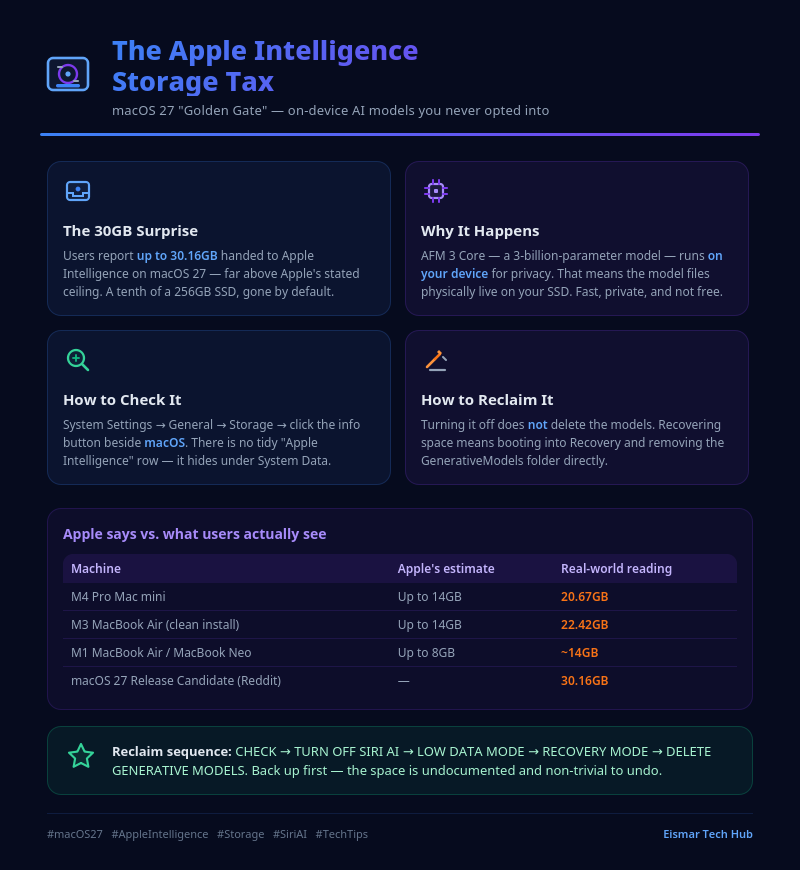
Infographic: Apple Intelligence storage on macOS 27

💬 0 Comments