Imagine this: you open ChatGPT on your Mac and ask, "What was I working on yesterday afternoon?" — and it actually knows. Not because you told it, but because it quietly watched. That's the promise of Computer History, OpenAI's newest feature for the ChatGPT Mac app, which rolled out this week (August 2026). It replaces the earlier "Chronicle" research preview and gives ChatGPT something it never had before: a searchable memory of everything you do on your computer.
It's a genuinely fascinating — and slightly spooky — piece of AI. Let's break down how it works, what you can actually do with it, and whether you should switch it on this weekend.
What Exactly Is Computer History?
Computer History is an opt-in feature in the ChatGPT desktop app for macOS that tracks your activity across apps and websites and turns it into a searchable timeline. Think of it as a personal activity log for your whole day, written by AI.
Here's the clever part: it doesn't take screenshots. The old "Chronicle" preview relied on screen captures, which felt invasive and ate storage. Computer History works completely differently — it records interaction events: your clicks, keystrokes, keyboard shortcuts, and app switches, all read through macOS's accessibility system. No screenshots, no screen recordings, no microphone input, and no system audio. Activity in private browsing mode is never included, according to OpenAI.
Those captured events are periodically converted into text summaries and stored locally as Markdown memory files. The timeline view groups them by day and time, and shows you which apps were involved. So instead of a wall of raw data, you get a clean, readable diary of your workday — "10:15 AM — edited presentation in Keynote, 11:40 AM — researched competitor pricing in Safari, 2:00 PM — replied to client emails in Mail."
What Can You Actually Do With It?
This is where Computer History gets genuinely useful. Because ChatGPT now has context about what you've been doing, it can help in ways that feel almost telepathic:
1. "Where did I put that file?" — One of the headline use cases is finding recently edited documents. Instead of digging through Finder or trying to remember what you named something, you can ask ChatGPT to locate the file you were working on and it can pull from your recorded activity to find the right source.
2. Instant standup summaries — If you use ChatGPT at work, Computer History can generate a summary of what you did across the day. That's a huge time-saver before a daily standup or a weekly review — no more frantically scrolling through your browser history to remember your own week.
3. Recurring workflows become "Skills" — This is the most futuristic part. When Computer History spots a repeatable pattern in your activity — say, you always export a report, rename it, and email it — the timeline suggests a Skill or automation. You can then ask Codex (OpenAI's coding agent) to build a reusable template from the recorded workflow. Your repetitive tasks start automating themselves.
4. Context-aware conversations — Because the memories show up as context in later chats, ChatGPT can answer questions like "What did I decide about the budget meeting?" without you pasting in a wall of context first. The AI finally has the same context you do.
The Permission System: Layers on Layers
OpenAI was clearly careful here — and for good reason, given how Windows 11's controversial Recall feature was received. Computer History has a multi-layered permission system:
- Admin approval first: In Business and Enterprise workspaces, an admin has to explicitly enable the feature before anyone can use it.
- Individual consent: Even after an admin enables it, each user still has to opt in personally. It's not on by default.
- Memories must be on: The feature only works if ChatGPT's Memories setting is also enabled.
- Granular control: You can set include and exclude lists for specific apps and websites, and pause or resume recording at any time from the macOS menu bar.
There are also geographic limits: the feature isn't available in the European Economic Area, Switzerland, or the United Kingdom — a sign of how sensitive the data is considered under EU-style privacy rules.
The Privacy Reality Check
Now for the part that should make you pause before clicking "enable." Because while the feature is opt-in, the way it stores data has some real caveats:
Your memory files are plaintext. The event data is processed into Markdown memory files that sit on your local file system, and they are not encrypted. OpenAI says temporary event files are deleted after 48 hours, but the generated memory files stay until you manually delete them. That means any program running under the same macOS user account could potentially read them. If you share your Mac or install third-party software with broad permissions, that's a real consideration.
Data is processed on OpenAI's servers. To generate the memories, OpenAI processes the temporary event files on its servers. The company says it doesn't keep them after processing (unless required by law), and that the files aren't used for AI training. But there's an important nuance: when memories show up as context in later chats, those chat contents may become training data depending on your data control settings. So the "not used for training" claim has a boundary.
Prompt injection is a real risk. OpenAI's own documentation flags a heightened prompt injection risk. Because Computer History captures content from apps and websites, malicious instructions embedded on a webpage could theoretically trick ChatGPT or Codex into following them. Imagine reading a page with hidden text designed to manipulate the AI — that's the attack surface this opens up.
Be careful with communication apps. OpenAI explicitly warns against using the feature with communication apps unless everyone in the conversation has given explicit consent. If you're recording your side of a WhatsApp or Slack conversation, the other people didn't agree to that. For apps that handle sensitive health, financial, or personal data, OpenAI recommends pausing recording or excluding those apps entirely.
Should You Turn It On?
Here's my honest take for a weekend experiment:
Turn it on if: You're a heavy ChatGPT user who works on a single Mac, you already trust OpenAI with your chat history, and you'd genuinely use the "find that file" or "summarize my day" features. The convenience is real — this is the closest thing to an AI that understands your actual work context. If you're a solo professional, freelancer, or student, the productivity payoff can be significant.
Skip it (or use it carefully) if: You handle sensitive client data, you use your Mac for personal banking and health stuff, you share your computer, or you're in a workplace with strict data policies. The plaintext memory files and the server processing are legitimate reasons to say no — and that's a completely reasonable choice.
If you do enable it, follow these ground rules:
- Set up exclude lists for banking, health, and personal communication apps from day one
- Pause recording whenever you're handling something confidential
- Periodically delete your memory files if you don't need the history
- Never use it in conversations where other people haven't consented
- Check your ChatGPT data control settings to understand what happens to memory-backed chats
The Bigger Picture: AI That Remembers
Computer History is more than a Mac feature — it's a sign of where the whole AI industry is heading. Memory is the missing ingredient in making AI assistants feel genuinely useful. Without it, every conversation starts from zero; with it, AI can act on the context of your real life. That's why Microsoft pushed Recall, why Google is embedding Gemini deeper into everything, and why OpenAI just gave ChatGPT a photographic memory of your workflow.
The trade-off is clear: convenience in exchange for transparency. The winners will be the companies that get the permission design right — and on paper, OpenAI's approach is thoughtful: opt-in, admin gating, granular controls, and clear warnings. Whether it holds up in practice remains to be seen, especially as the feature inevitably expands beyond macOS.
For now, here's the weekend-friendly experiment: enable Computer History, spend a day working normally, then ask ChatGPT to summarize your day. If you're impressed, keep it — with sensible exclusions. If it feels too much like a digital shadow, turn it off. That's the beauty of opt-in: the choice is yours, and it's reversible either way.
The key takeaway: AI memory is arriving — Computer History is your first real taste of it. Use the controls, protect the sensitive stuff, and enjoy asking your Mac, "What was I doing yesterday?" and getting a real answer.
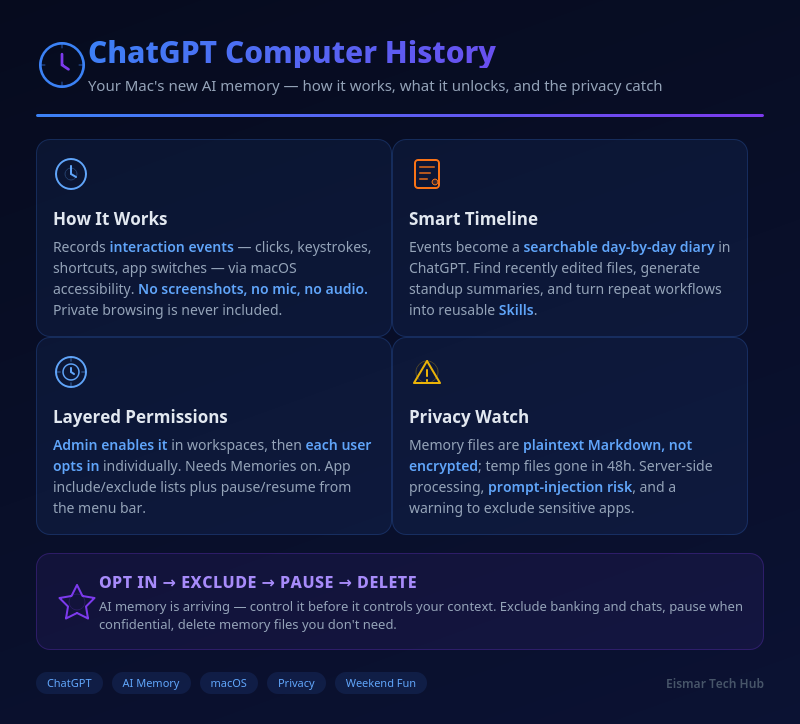
Infographic: ChatGPT Computer History — Your Mac's New AI Memory

💬 0 Comments