For years, asking a chatbot a question has meant one thing: a wall of text. Maybe an image or two pulled from the web, maybe a tidy bulleted list if you were lucky. This week, OpenAI decided that era is over.
On Wednesday, October 7, 2026, the company rolled out a feature it calls Intelligent UI — a new interface that turns ChatGPT's answers into fully interactive, visual experiences — powered by a brand-new flagship model, GPT-6. Instead of describing how something works in five paragraphs, ChatGPT can now build you a working diagram, a calculator, a slider-driven widget, or even a small interactive tool, right inside the conversation.
It is the kind of update that makes you stop and ask what a "chatbot" even is anymore. Let's break down what actually launched, what it looks like in the real world, and how you can get the most out of it this weekend.
What Actually Launched: GPT-6 Meets the Intelligent UI
Two things shipped together this week, and they are easy to conflate.
The first is GPT-6, OpenAI's newest flagship model. The second is Intelligent UI, the interface layer that decides how GPT-6 presents its answers. OpenAI describes the result as "fully interactive user interfaces" that make everyday answers more visual — and, in the company's words, make "learning complex topics easier" while quickly creating "tools to solve a task right in the moment."
The rollout happened in two waves. Paid users — ChatGPT Plus, Pro, Business, and Enterprise — got access on Wednesday, October 7. Free and Go tier users got it the very next day, Thursday, October 8. All told, the update reaches ChatGPT's more than 1.2 billion weekly users, making it one of the largest consumer AI changes ever shipped in a single week.
There is a small wrinkle in the model naming. Paid tiers receive GPT-6 Sol, while Free and Go users get GPT-6 Luna. GPT-6 is currently limited to the Chat tab — the models powering Work and Codex are not changing. So if you rely on ChatGPT for coding or enterprise tasks, do not expect the new look there just yet.
One more quiet but practical improvement: GPT-6 can start answering while it is still thinking, which should make responses feel snappier even before the visuals land.
What It Looks Like in the Real World
Spec sheets are boring. The examples are where Intelligent UI actually clicks.
In a hands-on test published by WIRED, the reviewer asked ChatGPT for a diagram of a slug — and got an anatomy-focused visual with tappable buttons for each body part, from the upper tentacles down to the muscular foot. They then generated a San Francisco apartment affordability calculator with movable sliders for income and expenses, showing what percentage of their take-home pay different units would cost.
Their favourite example is one almost anyone can relate to: an airplane seat explorer. After asking for a custom tool to compare cabin layouts across four different Alaska and Delta planes, ChatGPT generated an interactive seat map where you could tap any seat for details — and it highlighted the exit rows in green. No more squinting at a seating chart and hoping you did not book the row next to the toilet.
Other examples OpenAI has shown include:
- A dinner-party menu and grocery list with a slider that automatically recalculates quantities based on the number of guests.
- A bill-splitting calculator built directly inside the chat, so you do not have to reach for a separate app.
- An interactive soccer graphic explaining the offside rule, where you can drag players around the pitch to see exactly where the boundary line falls.
- Checklists, integrated maps, charts, forms, and multiple-choice follow-up questions that narrow down what you actually want.
The engineering behind it is genuinely clever. According to OpenAI, Intelligent UI uses a library of native, streamable components with a compiler that processes the interface as the model generates it. In plain English: the visuals stream in alongside the text, rather than being rendered after the fact like a static image.
Why This Matters: AI That Builds Tools, Not Just Answers
Strip away the flash, and there is a real conceptual shift here.
For most of ChatGPT's life, the model has been an explainer. You ask, it describes. If you wanted something you could actually interact with — a calculator, a chart you could poke at, a visual comparison — you either built it yourself or opened a different app.
Intelligent UI nudges ChatGPT toward being a tool-maker. Ask about a seven-speed bicycle and, instead of a paragraph on derailleurs, you can get an interactive diagram with an explorable frame, wheels, drivetrain, brakes, and handlebars. The answer stops being information you read and starts being software you use — generated on demand, for one question, in seconds.
This is part of a broader trend the industry is calling generative UI. Google announced a similar concept for Search earlier this year, where a query can produce an adjustable graphic — for instance, sliders that break down how a black hole works. Meta, Google, and OpenAI are all converging on the same idea: the interface itself becomes something the AI designs for you, on the fly.
WIRED put it well: the launch "signals that the multimodal era is here." Text, images, voice, and now interactive interfaces are blending into a single experience. The chatbot, as a category, is quietly becoming something else.
The Catch: "More Show Than Tell"?
Not everyone is convinced the visuals are a slam dunk — and the scepticism is worth taking seriously.
WIRED's headline was pointed: "The New ChatGPT Is More Show Than Tell." The concern is not that the feature is bad; it is that visual polish can feel like progress without necessarily being progress. A slick diagram is easier to admire than a plain-but-accurate paragraph, but it is not automatically more useful.
OpenAI's own team is aware of the clutter problem. Product manager Aarush Selvan told WIRED that the company's design team "spent a lot of time figuring out when adding a diagram, chart, or buttons adds value versus when it's starting to feel cluttered." Reassuringly, not every answer will suddenly arrive dressed in widgets — the interface is supposed to be selective. And if you find the visuals noisy, you can simply tell ChatGPT to generate fewer of them.
Two other things to keep in mind:
- Accuracy still matters more than format. OpenAI says the custom graphics are based on information pulled from online sources, which should be cited in each answer. As always, a confident-looking chart is only as good as the data behind it.
- Watch your usage limits. More complex outputs — deep reasoning, image generation, agentic tasks — chew through tokens and usage caps faster. OpenAI told CNET it does not expect the visual interface to change usage "meaningfully" because it is "by and large very efficient." That is a claim worth testing yourself rather than taking on faith.
There is also a bigger, quieter question the launch raises: if AI decides what software looks like for each individual user, what happens to human designers? WIRED suggests generative interfaces "may spark an identity crisis for designers." That is a debate for another day — but it is a sign of how much ground AI is claiming.
How to Make the Most of It This Weekend
If you have a ChatGPT account (free accounts count, as of Thursday), here is how to get real value out of Intelligent UI without drowning in visuals.
1. Ask for the format you actually want. Do not just ask "explain X." Ask it to "build me an interactive diagram of X" or "make me a calculator for X." The model cannot read your mind about presentation — but it responds very well when you are explicit.
2. Use it for decisions, not just definitions. The airplane seat explorer and apartment calculator are the real wins: tools that help you choose. Anything where you would normally fiddle with sliders or compare options is a great candidate.
3. Learn something visual. If a topic never quite stuck as text — the offside rule, how a bicycle drivetrain works, black holes — ask for an interactive version. Comprehension often improves when you can manipulate the thing you are learning about.
4. Tame it if it is too busy. Cluttered answers are easy to fix: ask for a plain-text response, or tell ChatGPT to cut back on the widgets. You are in control of the format.
5. Verify anything that matters. For charts, numbers, or maps tied to real-world facts, check the cited sources before you rely on them. Pretty and correct are not the same thing.
The Bottom Line
Intelligent UI is the clearest signal yet that ChatGPT is outgrowing the humble text box. The shift from "answers you read" to "tools you use" is genuinely useful — especially for learning and for the small everyday decisions that used to mean juggling three apps.
But the hype deserves a measured response. The most honest take is WIRED's: this is, for now, more show than tell, and the value will be proven in the details — accuracy, restraint, and whether these visuals actually save you time. The good news is that the controls are in your hands. Be specific about what you want, ask for fewer visuals when they get in the way, and keep your sceptical hat on for anything that looks too confident.
A smart user does not just admire a new interface — they put it to work. Take it for a spin this weekend and decide for yourself whether the wall of text is finally dead.
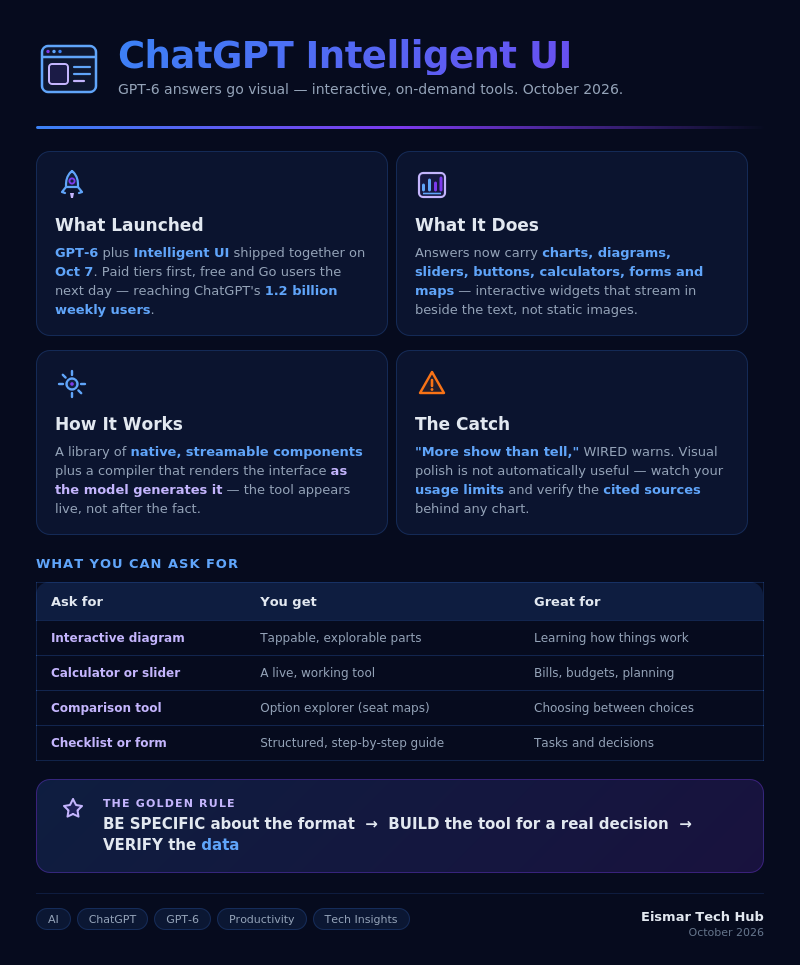
Infographic: ChatGPT's Intelligent UI — When AI Answers Go Visual

💬 0 Comments