Every sysadmin has been there. A server goes down at 3 AM. You SSH in, and your first instinct is to check the logs. But where do you start? If your log management is a mess — files scattered everywhere, gigabytes of unrotated logs consuming disk space, and no centralised view — you're flying blind.
Log management is one of those foundational skills that separates an average sysadmin from a great one. When done right, it transforms troubleshooting from a frantic scavenger hunt into a methodical investigation. In this guide, I'll walk through three pillars of Linux log management: configuring rsyslog for structured logging, taming disk usage with logrotate, and setting up a centralised log server for multi-host environments.
Why Log Management Matters
Before diving into configuration, let's talk about why this deserves your attention. A well-maintained logging setup:
- Saves time during incidents — structured logs with consistent timestamps mean you spend minutes finding root cause instead of hours
- Prevents disk-full emergencies — unrotated logs are one of the most common causes of "No space left on device" failures on production servers
- Enables proactive monitoring — centralised logs let you spot patterns (repeated SSH failures, gradual memory leaks) before they become outages
- Supports compliance — audit trails, access logs, and retention policies are non-negotiable for SOC 2, PCI-DSS, and ISO 27001
The investment in setting this up once pays dividends every single time something breaks.
Part 1: Mastering rsyslog Configuration
Rsyslog is the default logging daemon on most modern Linux distributions (RHEL 7+, Ubuntu 16.04+, Debian 8+). It's a significant upgrade over the old syslogd — supporting TCP, TLS, structured logging, advanced filtering, and high-throughput performance.
Understanding the Configuration Structure
The main configuration file is `/etc/rsyslog.conf`, but best practice is to drop custom rules into `/etc/rsyslog.d/`. Here's the anatomy of a rule:
```
facility.priority /var/log/target.log
```
Facilities categorise the source: `auth`, `authpriv`, `cron`, `daemon`, `kern`, `lpr`, `mail`, `news`, `syslog`, `user`, `uucp`, `local0` through `local7`.
Priorities control severity: `debug`, `info`, `notice`, `warning`, `err`, `crit`, `alert`, `emerg`.
The dot (`.`) means "this priority and above". An equals sign (`.=`) means "exactly this priority".
Practical rsyslog Rules
Here are the rules I use on every production server:
```bash
/etc/rsyslog.d/10-apps.conf
Separate auth logs (SSH, sudo, login attempts)
authpriv.* /var/log/auth.logSeparate cron logs
cron.* /var/log/cron.logCapture kernel messages
kern.* /var/log/kern.logEverything else goes to syslog
.;authpriv,cron,kern.none /var/log/syslog ```For high-traffic web servers, separating Apache and Nginx access logs via rsyslog is also valuable:
```bash
/etc/rsyslog.d/20-web.conf
If nginx or apache logs through syslog
if $programname == 'nginx' then /var/log/nginx/error.log & stop if $programname == 'httpd' then /var/log/httpd/error.log & stop ```The `& stop` directive tells rsyslog to stop processing after writing, preventing the message from also going to syslog.
Enabling Remote Logging (Receiver)
To turn your server into a centralised log collector:
```bash
/etc/rsyslog.d/30-remote-receiver.conf
Listen on TCP port 514
module(load="imtcp") input(type="imtcp" port="514")Store remote logs by hostname
$template RemoteLogs,"/var/log/remote/%HOSTNAME%/%PROGRAMNAME%.log" . ?RemoteLogs ```Then restart rsyslog:
```bash
systemctl restart rsyslog
```
Don't forget to open the firewall port:
```bash
firewall-cmd --permanent --add-port=514/tcp
firewall-cmd --reload
```
Sending Logs to a Central Server (Sender)
On each client machine, add:
```bash
/etc/rsyslog.d/40-send-to-central.conf
Use @ for UDP, @@ for TCP
. @@192.168.1.100:514 ```Replace `192.168.1.100` with your central log server's IP. The double `@` (`@@`) means TCP, which is more reliable than UDP for log delivery.
Part 2: Taming Log Growth with logrotate
Logs grow. Unchecked, they consume all available disk space. Logrotate is the tool that keeps them under control.
Anatomy of a logrotate Configuration
Main config: `/etc/logrotate.conf`. Custom rules go in `/etc/logrotate.d/`.
Here's my standard configuration for application logs:
```bash
/etc/logrotate.d/custom-apps
/var/log/app/*.log {
daily
rotate 14
compress
delaycompress
missingok
notifempty
create 0640 www-data www-data
sharedscripts
postrotate
systemctl reload rsyslog > /dev/null 2>&1 || true
endscript
}
```
Let me break down each directive:
| Directive | What it does |
|---|---|
| `daily` | Rotate once per day (alternatives: `weekly`, `monthly`, `size 100M`) |
| `rotate 14` | Keep 14 rotated files (14 days of history) |
| `compress` | Gzip old logs to save space |
| `delaycompress` | Skip compression on the most recent rotated file (useful for tailing) |
| `missingok` | Don't error if the log file doesn't exist |
| `notifempty` | Skip rotation if the log is empty |
| `create` | Recreate the log file with specified permissions |
| `sharedscripts` | Run postrotate once, not once per log file |
| `postrotate` | Commands to run after rotation |
Size-Based Rotation
For high-volume logs that grow quickly, use size-based rotation instead of time-based:
```bash
/var/log/nginx/access.log {
size 100M
rotate 20
compress
delaycompress
missingok
notifempty
create 0640 www-data adm
postrotate
systemctl reload nginx > /dev/null 2>&1 || true
endscript
}
```
This rotates whenever the file hits 100 MB, keeping 20 rotations regardless of the calendar. For busy e-commerce sites during peak season, this prevents a single day's traffic from filling /var.
Testing logrotate Without Waiting
Logrotate usually runs daily via cron (`/etc/cron.daily/logrotate`), but you can test immediately:
```bash
Dry run — shows what would happen
logrotate -d /etc/logrotate.d/custom-apps
Force run
logrotate -f /etc/logrotate.d/custom-appsForce with verbose output
logrotate -vf /etc/logrotate.d/custom-apps ```Always run the dry run (`-d`) first on a new config to catch syntax errors before they break production rotation.
Debugging logrotate Issues
If logs aren't rotating, check:
```bash
Check the last rotation status
cat /var/lib/logrotate/logrotate.status | grep custom-apps
Run logrotate in debug mode
logrotate -d /etc/logrotate.d/custom-apps 2>&1 | grep -i errorVerify the config syntax
logrotate -d /etc/logrotate.d/custom-apps > /dev/null 2>&1 && echo "Config OK" || echo "Config ERROR" ```Common issues: wrong file paths, missing directories, permission errors on the `create` directive, or postrotate scripts that exit non-zero.
Part 3: Building a Centralised Logging Architecture
Centralised logging solves a fundamental problem: when you have 10, 20, or 100 servers, SSHing into each one to check logs is not scalable. Here's how to build a practical centralised logging setup.
Architecture Overview
```
[Web Server] ──TCP 514──┐
[DB Server] ──TCP 514──┤──> [Log Collector] ──> /var/log/remote/{hostname}/{program}.log
[App Server] ──TCP 514──┘
```
The log collector receives logs from all clients via rsyslog TCP, stores them organised by hostname and program, and rotates them with logrotate.
Log Collector Configuration (Full)
On the central log server:
```bash
/etc/rsyslog.conf (relevant sections)
Enable TCP reception
module(load="imtcp") input(type="imtcp" port="514")Template for remote logs — organised by hostname and program
$template RemoteLogs,"/var/log/remote/%HOSTNAME%/%PROGRAMNAME%.log"Apply template to all remote messages, but exclude local logs
:source, !isequal, "127.0.0.1" ?RemoteLogs :source, !isequal, "localhost" ?RemoteLogs & stop ```Logrotate for Remote Logs
```bash
/etc/logrotate.d/remote-logs
/var/log/remote//.log {
daily
rotate 30
compress
delaycompress
missingok
notifempty
sharedscripts
postrotate
systemctl reload rsyslog > /dev/null 2>&1 || true
endscript
}
```
Security Considerations
A few hard-learned lessons:
- Use TCP, not UDP — UDP drops packets under load. TCP guarantees delivery at the cost of slightly higher overhead.
- Firewall the log port — Only allow log sources (your internal IP ranges). An open 514/TCP on the public internet is asking for trouble.
- Monitor log volume — A sudden drop in log volume usually means a client has lost connectivity. A sudden spike could mean something is broken or under attack.
- Encrypt in transit — For production environments, use TLS-encrypted rsyslog:
```bash
On the server (receiver)
module(load="imtcp")
input(type="imtcp" port="6514" TLSCertFile="/etc/ssl/log-server.crt" TLSKeyFile="/etc/ssl/log-server.key")
On the client (sender)
. @@log-collector.example.com:6514 ```Putting It All Together: A Quick-Start Checklist
Here's a practical checklist for setting up log management on a new server:
- Install rsyslog — `apt install rsyslog` or `yum install rsyslog`
- Configure log separation — create `/etc/rsyslog.d/` rules for auth, cron, kernel
- Configure logrotate — add `/etc/logrotate.d/` entries for your application logs
- Test logrotate — run `logrotate -d` to verify your config
- Set up central logging — configure a collector server and point clients to it
- Firewall the log ports — restrict TCP 514 to trusted IP ranges
- Monitor disk space — add a cron job that warns when /var/log exceeds 80%
- Document retention policies — know how long you keep logs (14 days? 30? 90?)
Conclusion
Good log management doesn't happen by accident — it requires deliberate setup and ongoing attention. But the effort is minimal compared to the payoff. A well-configured rsyslog and logrotate setup means you'll never again face a midnight emergency wondering which log file contains the answer, and you'll never explain to your manager why /var ran out of space because of four-month-old Apache logs.
Start with the basics: separate your logs by facility, rotate them daily, keep 14 days of history, and if you manage more than a handful of servers, set up centralised logging. Your future self — the one debugging an incident at 3 AM — will thank you.
A smart sysadmin makes informed decisions before things break.
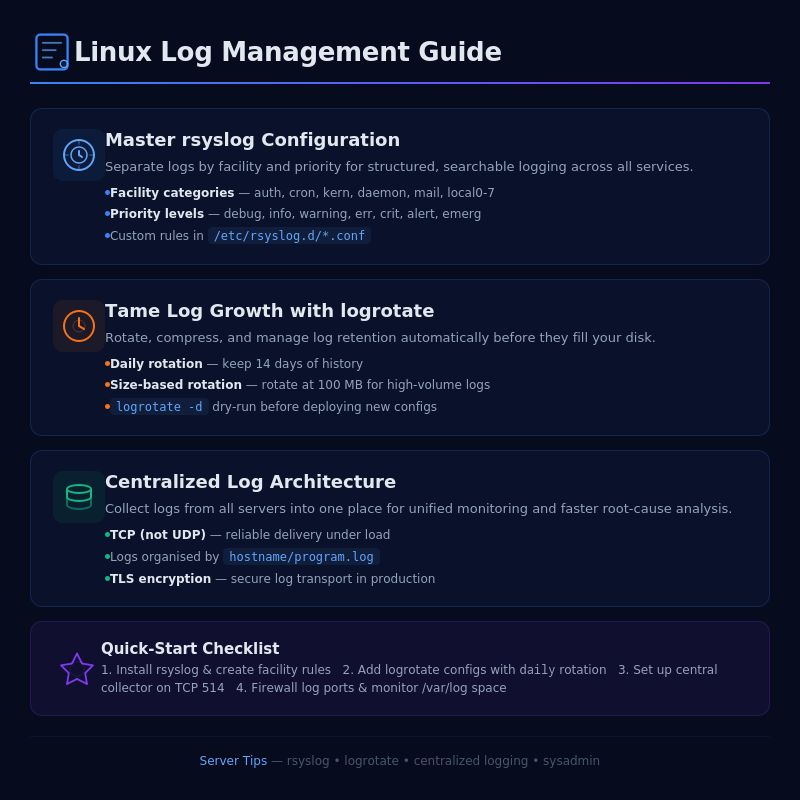
Infographic: Linux Log Management Guide

💬 0 Comments