systemd is the init system that powers every major Linux distribution today — Ubuntu, Debian, RHEL, CentOS, Fedora, Arch, and practically everything except Alpine. Love it or hate it, systemd is here to stay. And once you learn how to write proper service files, master journalctl for debugging, and replace cron with systemd timers, you'll wonder how you ever lived without it.
This guide is hands-on. No theory without practice — every section has real commands you can run on your server today.
1. Anatomy of a systemd Service File
A systemd service file is a simple INI-style configuration file that tells systemd how to manage your process. They live in `/etc/systemd/system/` (system-wide) or `~/.config/systemd/user/` (per-user).
Here's a production-ready template:
```ini
[Unit]
Description=My Custom Application Service
Documentation=https://example.com/docs
After=network.target postgresql.service
Wants=postgresql.service
Requires=network.target
[Service]
Type=simple
User=myapp
Group=myapp
WorkingDirectory=/opt/myapp
ExecStart=/usr/local/bin/myapp --config /etc/myapp/config.yaml
ExecReload=/bin/kill -HUP $MAINPID
Restart=on-failure
RestartSec=5
TimeoutStopSec=30
Environment=LOG_LEVEL=info
EnvironmentFile=-/etc/default/myapp
LimitNOFILE=65536
StandardOutput=journal
StandardError=journal
[Install]
WantedBy=multi-user.target
```
Key Directives Explained
`[Unit]` section:
- `Description` — human-readable name (shows up in `systemctl status`)
- `After=` — order dependency: start AFTER network and PostgreSQL are up
- `Wants=` — weak dependency: if PostgreSQL fails to start, this still runs
- `Requires=` — strong dependency: if network.target fails, this won't start either
`[Service]` section:
- `Type=simple` — the default. systemd considers the service started as soon as `ExecStart` forks. Use `Type=notify` for services that explicitly signal readiness (e.g. Nginx, PostgreSQL).
- `Type=forking` — for traditional daemons that fork into the background. systemd follows the parent PID until the child is ready.
- `Type=oneshot` — for scripts that run once and exit (used with `RemainAfterExit=yes`).
- `User=` / `Group=` — always run services as a non-root user. This is basic security hygiene.
- `ExecStart` — the full path to the executable + arguments. Always use absolute paths.
- `Restart=on-failure` — automatically restart if the process exits with non-zero code. Other options: `always`, `on-abnormal`, `on-watchdog`.
- `RestartSec=5` — wait 5 seconds before restarting (prevents rapid restart loops).
- `TimeoutStopSec=30` — give the process 30 seconds to shut down gracefully before SIGKILL.
- `Environment=` — set environment variables inline.
- `EnvironmentFile=` — load variables from a file. The `-` prefix means "ignore if file doesn't exist".
- `LimitNOFILE=65536` — bump the file descriptor limit (critical for database and web servers).
- `StandardOutput=journal` / `StandardError=journal` — capture logs to journald.
`[Install]` section:
- `WantedBy=multi-user.target` — start this service in normal multi-user runlevel (equivalent to init 3 / rc3.d).
2. Creating and Managing a Custom Service
Let's build a real example: a simple Python web health checker that runs as a systemd service.
Step 1: Create the script.
```bash
cat > /opt/healthcheck/healthcheck.py << 'EOF'
#!/usr/bin/env python3
"""Simple health check logger - runs as a systemd service"""
import time, logging
from logging.handlers import SysLogHandler
logging.basicConfig(
level=logging.INFO,
format='%(asctime)s healthcheck[%(process)d]: %(message)s'
)
while True:
logging.info("Health check OK - all systems nominal")
time.sleep(60)
EOF
chmod +x /opt/healthcheck/healthcheck.py
```
Step 2: Create the service file.
```bash
cat > /etc/systemd/system/healthcheck.service << 'SERVICEEOF'
[Unit]
Description=Server Health Check Service
After=network.target
[Service]
Type=simple
User=nobody
Group=nogroup
WorkingDirectory=/opt/healthcheck
ExecStart=/opt/healthcheck/healthcheck.py
Restart=on-failure
RestartSec=10
[Install]
WantedBy=multi-user.target
SERVICEEOF
```
Step 3: Enable and start.
```bash
systemctl daemon-reload # Tell systemd to reload its configuration
systemctl enable healthcheck # Enable at boot (creates symlink)
systemctl start healthcheck # Start now
systemctl status healthcheck # Check status
```
Step 4: Useful management commands.
```bash
systemctl stop healthcheck # Stop the service
systemctl restart healthcheck # Stop + start
systemctl reload healthcheck # Send SIGHUP (only if ExecReload is defined)
systemctl disable healthcheck # Remove from boot
systemctl mask healthcheck # Prevent any manual or dependency start
systemctl unmask healthcheck # Re-enable
```
Checking Dependencies
```bash
What does this service need to start?
systemctl list-dependencies healthcheck
What services depend on this?
systemctl list-dependencies --reverse healthcheck ```3. Master journalctl: The sysadmin's Best Friend
journalctl is the query interface for systemd's journald logging system. It replaces `tail -f /var/log/syslog` with structured, filterable, timestamped log queries.
Basic Usage
```bash
journalctl # All logs (paged)
journalctl -n 50 # Last 50 lines (like tail -n 50)
journalctl -f # Follow mode (like tail -f)
journalctl -u healthcheck # Logs for a specific unit
journalctl -u nginx -u postgresql # Combined logs from multiple units
journalctl --since "10 min ago" # Time-based filtering
journalctl --since "2026-06-28" --until "2026-06-29"
```
Advanced Filtering
```bash
By priority
journalctl -p err # Only errors and above
journalctl -p warning -u nginx # Warnings+ for nginx
journalctl -p 3 # Numeric: 0=emerg,1=alert,2=crit,3=err
By PID
journalctl _PID=1234 # Logs from a specific processBy user
journalctl _UID=1000 # Logs from a specific userBoot-specific
journalctl -b 0 # Current boot journalctl -b -1 # Previous boot (for crash analysis) journalctl --list-boots # Show all boot sessionsOutput formats
journalctl -u nginx -o json-pretty # JSON with structured fields journalctl -u nginx -o short-iso # ISO 8601 timestamps journalctl -u nginx -o cat # Only message body, no metadata ```The Golden Debugging Pattern
When a service fails to start, here's your debugging workflow:
```bash
1. Check the status
systemctl status myservice
2. View the last 50 log entries for this unit
journalctl -u myservice -n 50 --no-pager3. See what happened in the last 5 minutes with error priority
journalctl -u myservice -p err --since "5 min ago"4. Follow in real-time while restarting (open a second terminal)
journalctl -u myservice -f5. In the first terminal, restart
systemctl restart myservice ```This workflow catches every failure mode: missing files, permission errors, port conflicts, config parsing issues, environment variable problems — you name it.
Disk Usage & Journal Maintenance
Journald can eat disk space if left unchecked. Check and manage it:
```bash
journalctl --disk-usage # Current journal size
journalctl --vacuum-size=500M # Keep only 500MB of logs
journalctl --vacuum-time=7d # Keep only last 7 days
journalctl --rotate # Force rotation (no restart needed)
```
For production, configure limits in `/etc/systemd/journald.conf`:
```ini
SystemMaxUse=1G
SystemMaxFileSize=100M
MaxRetentionSec=1month
```
4. systemd Timers: Replace cron with Modern Scheduling
systemd timers are superior to cron in several ways:
- Persistent logs — every timer execution is logged to journald
- Dependency-based — a timer can wait for network.target
- Missed execution handling — if the system was off, it can catch up
- Randomized delays — prevent the "thundering herd" of servers hitting the same resource at :00
- Monitoring — `systemctl list-timers` shows all scheduled and missed runs
Example: Daily Log Cleanup Timer
Step 1: Create the oneshot service (the actual work).
```ini
/etc/systemd/system/cleanup-logs.service
[Unit]
Description=Rotate and clean old application logs
[Service]
Type=oneshot
ExecStart=/usr/local/bin/cleanup-old-logs.sh
User=root
```
Step 2: Create the timer.
```ini
/etc/systemd/system/cleanup-logs.timer
[Unit]
Description=Run log cleanup daily at 3 AM
Requires=cleanup-logs.service
[Timer]
OnCalendar=--* 03:00:00
Persistent=true
RandomizedDelaySec=1800
[Install]
WantedBy=timers.target
```
Step 3: Enable the timer (not the service).
```bash
systemctl daemon-reload
systemctl enable cleanup-logs.timer
systemctl start cleanup-logs.timer
```
The service runs on-demand via the timer. You can also trigger it manually:
```bash
systemctl start cleanup-logs.service # Run now, regardless of timer
```
Timer Scheduling Patterns
| OnCalendar Expression | Meaning |
|---|---|
| `Mon..Fri 09:00:00` | Weekdays at 9 AM |
| `--1,15 00:00:00` | 1st and 15th of every month |
| `0/15:00:00` | Every 15 minutes |
| `00:00:00` | Daily at midnight |
| `-- 00,12:00:00` | Twice a day (midnight + noon) |
| `Sat -- 02:00:00` | Every Saturday at 2 AM |
Compare Active Timers
```bash
systemctl list-timers --all
```
This shows:
- NEXT — next scheduled run
- LEFT — time remaining
- LAST — when it last ran
- PASSED — how long since last run
- UNIT — the timer unit name
- ACTIVATES — the service that gets triggered
When `PASSED` shows a value but `LAST` is empty, the timer missed a scheduled run and `Persistent=true` is queuing it for catch-up.
5. Service Hardening with systemd
systemd has built-in sandboxing features that are criminally underused. These add zero performance overhead and can prevent compromised services from escalating:
```ini
[Service]
File system restrictions
ProtectSystem=strict
ProtectHome=true
ReadWritePaths=/var/lib/myapp
Network restrictions
PrivateNetwork=true # No network access at all RestrictAddressFamilies=AF_UNIX # Only Unix socketsKernel restrictions
SystemCallFilter=@system-service SystemCallArchitectures=native NoNewPrivileges=trueProcess isolation
PrivateTmp=true ProtectKernelTunables=true ProtectKernelModules=true ProtectControlGroups=true ```Test your hardening:
```bash
systemd-analyze security myapp.service
```
This gives a security score (0-10, higher is better) and lists all hardening features with their current status. Aim for 9+ on production services.
6. Troubleshooting Common systemd Issues
"Unit not found" after creating a file
This is the #1 gotcha. You created `/etc/systemd/system/myservice.service` but systemd doesn't see it.
```bash
systemctl daemon-reload # Always run this after creating/modifying files
```
Service enters "activating (start)" state indefinitely
Your `ExecStart` process isn't signalling readiness. Solutions:
- For `Type=simple`: the process must keep running in the foreground (no forking)
- For `Type=forking`: set `PIDFile=/var/run/myservice.pid` so systemd knows which PID to track
- For `Type=notify`: the process must call `sd_notify(0, "READY=1")`
"Failed to start: Connection timed out"
Your `ExecStart` binary or script is hanging. Common causes:
- The binary waits on a network resource that isn't available
- A script is blocked on stdin (it's waiting for input!)
- Missing `&` or nohup (but don't use those — just use `Type=simple`)
Journal says "Main process exited, code=exited, status=1/FAILURE"
This means your process ran but returned a non-zero exit code. Check:
- File permissions — does `User=` have execute permission on the binary?
- Missing libraries — `ldd /path/to/binary` shows unresolved dependencies
- Syntax errors — run the script manually as the service user: `sudo -u myuser /path/to/script`
Conclusion
systemd is far more than just an init system — it's a complete service management framework. Writing custom service files isolates your applications, ensures they restart on failure, and captures logs automatically. journalctl gives you powerful, structured log queries that make debugging a breeze. And systemd timers are a robust, auditable replacement for cron with built-in monitoring.
The real win? Once you standardize on systemd for all your services, every server behaves the same way. No more guessing which init system or log format each application uses. One pattern to rule them all.
Start small: containerize that Python script you've been running in a tmux session. Write a service file for it. Set up a timer. Check the logs with journalctl. You'll never go back to screen sessions and raw log files again.
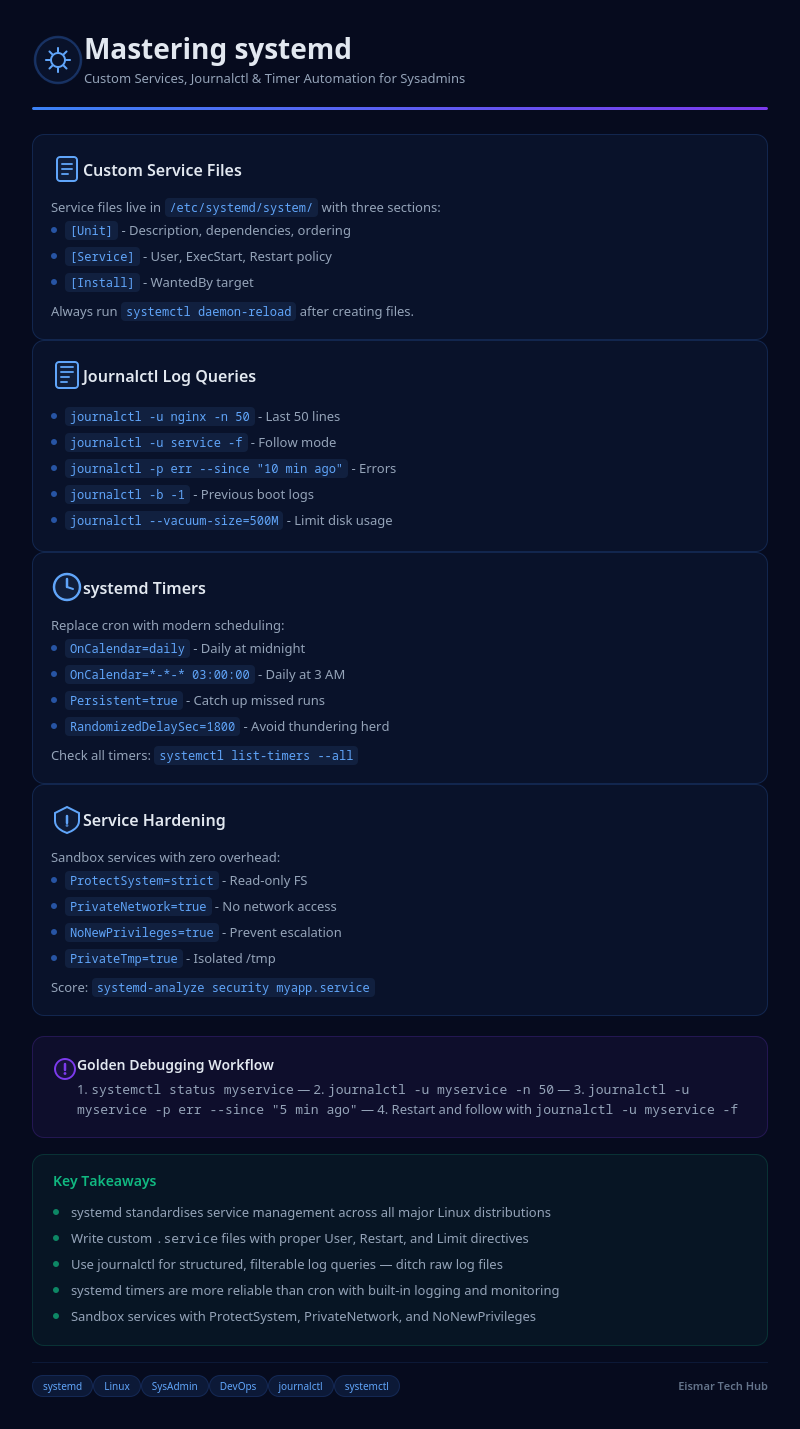
Infographic: Mastering systemd - Custom Services, Journalctl & Timers
Infographic: Mastering systemd

💬 0 Comments